The Problem
A standard user has no legitimate reason to open a PowerShell console or a command prompt. Allowing them access is like leaving a door open: an attacker who gains a user session can use PowerShell as a tool for reconnaissance, lateral movement, or execution. Closing this backdoor reduces the attack surface.
Let’s be clear about the scope: this GPO does not protect against ransomware. A modern crypto-locker includes its own execution engine and does not rely on powershell.exe or cmd.exe present on the machine. Blocking the console is a hardening measure (reducing the attack surface, defense-in-depth), not a bulwark against malware. True ransomware protection involves removing local admin rights, comprehensive application whitelisting, and offline backups.
That said, reducing the attack surface makes sense in and of itself. That is the goal of this GPO.
SRP Is Dead, Long Live AppLocker
Historically, executables were blocked using Software Restriction Policies (SRP). On recent versions of Windows 11 (24H2), this is no longer an option: Microsoft deprecated SRP starting with Windows 10 build 1803 and has largely disabled it on modern versions. Relying on it today is like relying on a defunct feature.
The modern solution is AppLocker. Officially reserved for Enterprise and Education editions, it works in practice on Windows 11 Pro via GPO—Microsoft doesn’t officially support it on Pro, but it works. The main thing to keep in mind: AppLocker depends on the Application Identity service (AppIDSvc), which must be running on the machines.

The Advantage of AppLocker Over Naive Methods
A common but fallible approach is to use the “Do not run specified Windows applications” setting to block powershell.exe and cmd.exe. The problem: on Windows 11, the default terminal is Windows Terminal (wt.exe), which hosts PowerShell and CMD. Blocking powershell.exe using this method does not prevent it from being launched from Windows Terminal.
AppLocker, on the other hand, blocks the executable regardless of its container. Whether powershell.exe is launched directly, from the Start menu, or from Windows Terminal, AppLocker intercepts it. This is the correct method.
Creating the GPO
In the GPMC:
Right-click the target OU → Create a GPO in this domain and link it here
Name: Block Console Non-Admins
Link to COMPUTERS.
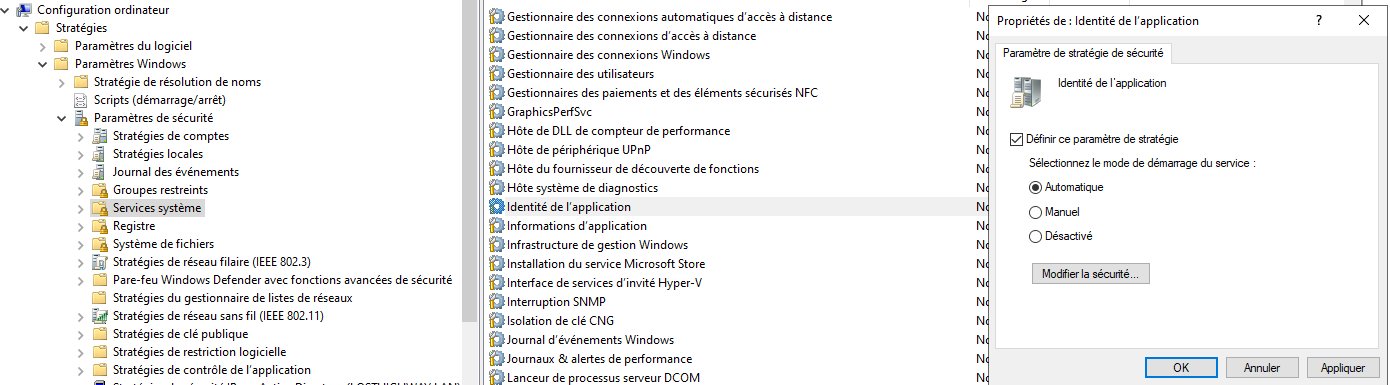
Step 1 — Enable the Application Identity service
AppLocker does nothing if this service is not running. Force it to start automatically via the GPO:
Computer Configuration → Policies → Windows Settings → Security Settings → System Services
→ "Application Identity"
→ Set this policy setting → Automatic
Step 2 — Create the default AppLocker rules
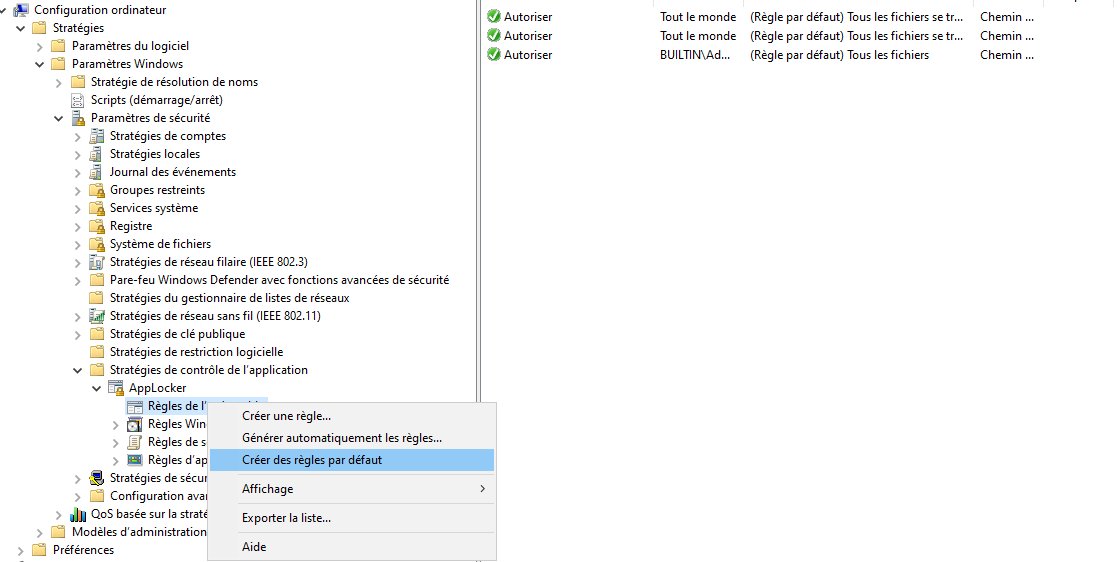
Before creating any blocking rules, you must first create the default rules; otherwise, AppLocker will block everything in Windows.
Computer Configuration → Policies → Windows Settings → Security Settings
→ Application Control Policies → AppLocker → Executable Rules
→ Right-click → Create Default Rules
This creates three allow rules: anyone can run files in the Program Files and Windows folders, and administrators can run anything. These rules are essential—without them, AppLocker switches to “everything is blocked except what is explicitly allowed” mode and breaks the system.
Step 3 — Create Deny Rules
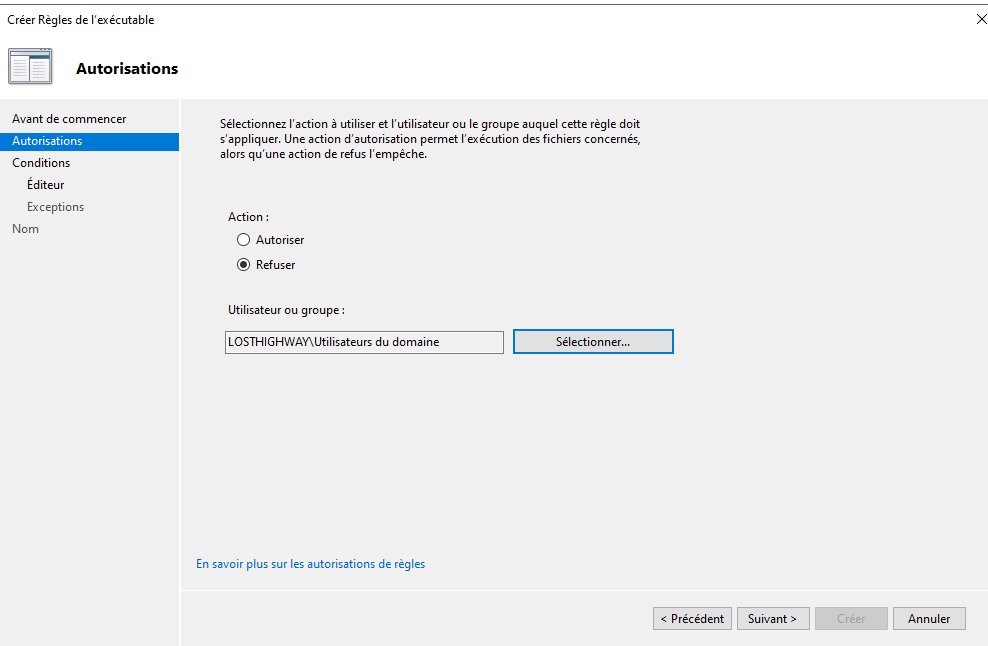
For each executable to block, right-click on Executable Rules → Create Rule:
- Permissions:
Deny,Domain Usersgroup — targets all non-admins - Conditions:
Path
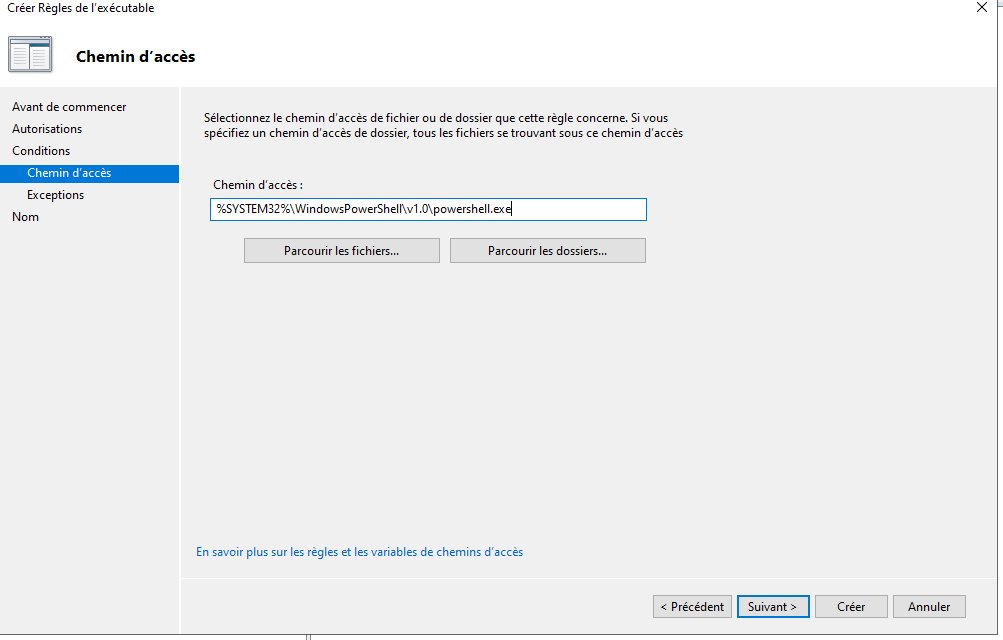
Four rules to create:
| Executable | Path |
|---|---|
| PowerShell | %SYSTEM32%\WindowsPowerShell\v1.0\powershell.exe |
| PowerShell ISE | %SYSTEM32%\WindowsPowerShell\v1.0\powershell_ise.exe |
| Command Prompt | %SYSTEM32%\cmd.exe |
| PowerShell 7 | %PROGRAMFILES%\PowerShell\7\pwsh.exe |
> Why target "Domain Users" and not "Everyone": A "Deny" rule always takes precedence over an "Allow" rule in AppLocker. By targeting only Domain Users, administrators (who are not included in this block and benefit from the default rule “Administrators → allow everything”) retain access to the consoles. Non-admins are blocked; admins are allowed through.
> The PowerShell 7 rule (pwsh.exe) is a precaution if you haven’t deployed PowerShell 7—it doesn’t interfere with anything and covers the scenario where it might be installed later.
Known Limitations of AppLocker
Let’s be honest about the value of this protection. Path-based AppLocker can be bypassed: a user who copies powershell.exe to another location and renames it can circumvent a path-based rule. For more robust protection, you would use rules based on the publisher (signature) or hash. But for reducing the attack surface against opportunistic use, path-based blocking is sufficient and easy to maintain.
And here’s a reminder worth repeating: the most effective measure is still not to grant local admin rights to users. AppLocker is a supplement, not a substitute.
Post-Deployment Verification
After running gpupdate /force and rebooting a test machine, log in as a standard user:
Attempting to open PowerShell or CMD should display a Group Policy block message. From an admin perspective, verify the blocked attempts:
Get-AppLockerFileInformation -EventLog -EventType Denied -Statistics
Also verify that the service is running:
Get-Service AppIDSvc | Select-Object Name, Status, StartType
Summary
| Component | Details |
|---|---|
| GPO Name | Block Console Non-Admins |
| Method | AppLocker (SRP deprecated on Windows 11) |
| Prerequisites | Application Identity service set to Automatic |
| Default Rules | Mandatory "Deny" rules |
| Deny Rules | powershell.exe, powershell_ise.exe, cmd.exe, pwsh.exe |
| Deny Target | Domain users (admins exempt) |
| Covers Windows Terminal | Yes (blocked at the executable level) |
| Target | WORKSTATIONS |
GPO Library — back to index