The Problem
The bliiip-tududu every time you log in. The ding with every notification. The bong with every error dialog box. On a single machine, it’s annoying. Across an entire fleet where every workstation plays its own little tune when it boots up, it’s constant noise pollution that nobody ever asked for.
Windows does let you change the sound scheme manually in the settings, but doing it one workstation at a time makes no sense. A GPO can fix this across the entire fleet with just two registry keys.
How Windows Manages Sounds
There are two distinct mechanisms to disable:
The sound scheme is managed per user (HKEY_CURRENT_USER). It associates each Windows event (logon, error, notification, etc.) with a .wav file. Windows provides an empty scheme named .None that disables all sounds at once.
The Windows startup sound is managed separately, at the machine level (HKEY_LOCAL_MACHINE). It is not covered by the sound scheme and requires its own key.
That is why the GPO affects two settings: User for the sound scheme, and Computer for the startup sound.
Creating the GPO
In the GPMC:
Right-click the target OU → Create a GPO in this domain and link it here
Name: Disable System Sounds
Link to STATIONS.
Layer 1 — .None Sound Scheme (User Configuration)
The sound scheme is per user, so this key goes in User Configuration.
User Configuration → Preferences → Windows Settings → Registry
→ New → Registry Item
| Field | Value |
|---|---|
| Action | Update |
| Hive | HKEY_CURRENT_USER |
| Path | AppEvents\Schemes |
| Value Name | (Default) — check the "Default" box |
| Type | REG_SZ |
| Data | .None |
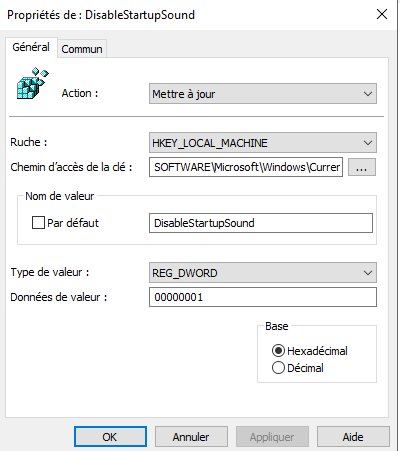
Layer 2 — Startup Sound (Computer Configuration)
The startup sound is at the machine level, so this key goes under Computer Configuration.
Computer Configuration → Preferences → Windows Settings → Registry
→ New → Registry Item
| Field | Value |
|---|---|
| Action | Update |
| Hive | HKEY_LOCAL_MACHINE |
| Path | SOFTWARE\Microsoft\Windows\CurrentVersion\Policies\System |
| Value Name | DisableStartupSound |
| Type | REG_DWORD |
| Data | 1 |

The Pitfall to Avoid
The classic mistake is placing both keys in the same location. A HKEY_LOCAL_MACHINE key stored in User Configuration will not apply correctly—the registry hive does not match the application context.
Each key must be in the correct configuration: HKCU → User Configuration, HKLM → Computer Configuration. It seems obvious when written out like this, but it’s an error that’s easy to make when adding Registry items one after another.
Post-Deployment Verification
After running gpupdate /force, log out and log back in (for the sound scheme in the user context) and reboot (for the startup sound):
# The active sound scheme must be .None
Get-ItemPropertyValue "HKCU:\AppEvents\Schemes" -Name "(Default)"

# The startup sound must be disabled (1)
Get-ItemPropertyValue "HKLM:\SOFTWARE\Microsoft\Windows\CurrentVersion\Policies\System" -Name DisableStartupSound
Summary
| Component | Details |
|---|---|
| GPO Name | Disable System Sounds |
| Layer 1 | User Config — AppEvents\Schemes = .None (REG_SZ) |
| Layer 2 | Computer Config — DisableStartupSound = 1 (REG_DWORD) |
| Reboot | Recommended (startup sound) |
| Target | WORKSTATIONS |
GPO Library — back to index