Let’s be honest: Edge isn’t terrible as a browser. What’s terrible is its behavior in a managed environment.
It’s a browser we didn’t choose, one that imposes itself on every new user profile, and runs background services for no reason.
With every new user profile, Edge imposes itself as the default browser. Its edgeupdate and edgeupdatem services run constantly in the background, even on machines where no one has opened Edge. Its scheduled tasks restart after certain updates. And if you use Chrome, Opera, Firefox, or any other browser as your default, you have to reconfigure this on every new profile.
On my infrastructure, the default browser is Brave, manually installed on workstations (automatic deployment of Brave will be covered in another GPO). The Kill Edge GPO is used to completely disable Edge: uninstallation via its own installer, services disabled, scheduled tasks stopped, and blocking of the Microsoft account connection in case Edge survives anyway.
What You Need to Know Before You Begin
Edge Is a System Component
Here’s the bad news: Microsoft treats Edge as a Windows component, not as a third-party application. After a major Windows update, Edge may return. This is a documented fact, and there is no official method to prevent it permanently.
The good news: on an infrastructure with a properly configured WSUS that doesn’t synchronize Feature Packs and optional updates, this risk is greatly reduced. The uninstallation script we’re going to deploy runs at every startup—if Edge comes back, it’ll be gone again at the next reboot.
What We Don’t Do
We don’t patch the OS. We don’t make deep changes to Windows system components. We use official mechanisms: Edge’s own installer for uninstallation, and documented registry keys for the rest.
Creating the GPO
In the GPMC:
Right-click on the target OU → Create a GPO in this domain and link it here
Name: Kill Edge
Layer 1 — Startup PowerShell Script
This is the core of the GPO. The script runs at every startup in SYSTEM context, before the user logs in.
Create a kill_edge.ps1 file:
# Uninstall Edge using its own installer
$EdgeSetup = Get-ChildItem "C:\Program Files (x86)\Microsoft\Edge\Application\*\Installer\setup.exe" `
    -ErrorAction SilentlyContinue | Select-Object -Last 1
if ($EdgeSetup) {
    Start-Process $EdgeSetup.FullName `
        -ArgumentList "--uninstall --system-level --verbose-logging --force-uninstall" `
        -Wait
}

# Disable Edge Update services
Stop-Service edgeupdate -ErrorAction SilentlyContinue
Stop-Service edgeupdatem -ErrorAction SilentlyContinue
Set-Service edgeupdate -StartupType Disabled -ErrorAction SilentlyContinue
Set-Service edgeupdatem -StartupType Disabled -ErrorAction SilentlyContinue

# Disable Edge scheduled tasks
Get-ScheduledTask | Where-Object { $_.TaskName -like "*Edge*" } | `
    Disable-ScheduledTask -ErrorAction SilentlyContinue

# Block Edge on new user profiles
reg load HKLM\DEFAULT_USER "C:\Users\Default\NTUSER.DAT"
reg delete "HKLM\DEFAULT_USER\Software\Microsoft\Windows\CurrentVersion\Run" `
    /v MicrosoftEdgeAutoLaunch /f 2>$null
reg unload HKLM\DEFAULT_USER
Place this file in the GPO's Scripts folder:
\\domain\SYSVOL\domain\Policies\{GUID-GPO}\Machine\Scripts\Startup\
Then in the GPMC:
Computer Configuration → Policies → Windows Settings → Scripts → Startup
→ "PowerShell Scripts" tab → Add → kill_edge.ps1
Layer 2 — GPP Registry
Three additional keys to block Edge update and telemetry mechanisms.
Computer Configuration → Preferences → Windows Settings → Registry
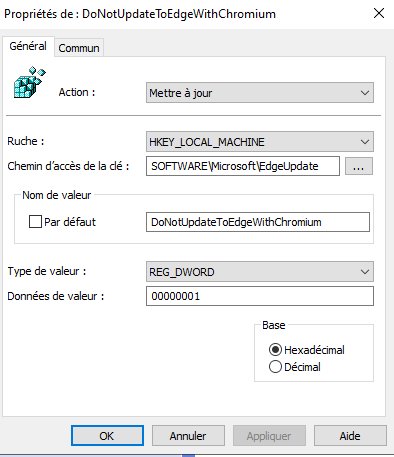
Block EdgeUpdate (prevents Edge from updating automatically)
| Field | Value |
|---|---|
| Action | Update |
| Hive | HKEY_LOCAL_MACHINE |
| Path | SOFTWARE\Microsoft\EdgeUpdate |
| Name | DoNotUpdateToEdgeWithChromium |
| Type | REG_DWORD |
| Data | 1 |
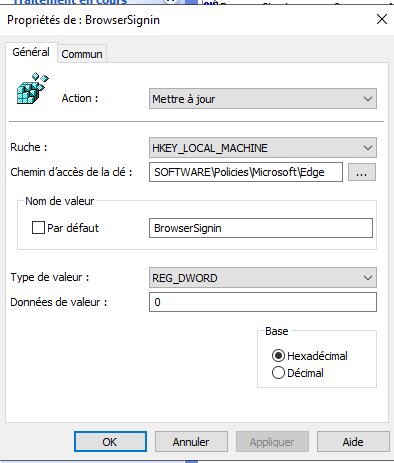
Disable Microsoft account sign-in in Edge
| Field | Value |
|---|---|
| Action | Update |
| Hive | HKEY_LOCAL_MACHINE |
| Path | SOFTWARE\Policies\Microsoft\Edge |
| Name | BrowserSignin |
| Type | REG_DWORD |
| Data | 0 |
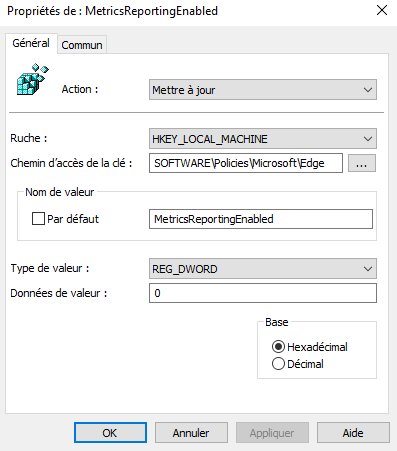
Disable Edge Telemetry
| Field | Value |
|---|---|
| Action | Update |
| Hive | HKEY_LOCAL_MACHINE |
| Path | SOFTWARE\Policies\Microsoft\Edge |
| Name | MetricsReportingEnabled |
| Type | REG_DWORD |
| Data | 0 |
Post-deployment verification
After gpupdate /force and reboot:
# Edge should not be among active processes
Get-Process -Name msedge -ErrorAction SilentlyContinue

# Edge Update services must be disabled
Get-Service edgeupdate, edgeupdatem | Select-Object Name, StartType, Status

# Edge scheduled tasks must be disabled
Get-ScheduledTask | Where-Object { $_.TaskName -like "*Edge*" } | Select-Object TaskName, State

# Check registry keys
Get-ItemProperty "HKLM:\SOFTWARE\Microsoft\EdgeUpdate" -Name DoNotUpdateToEdgeWithChromium
Get-ItemProperty "HKLM:\SOFTWARE\Policies\Microsoft\Edge" -Name BrowserSignin, MetricsReportingEnabled