Hibernation can be useful on a laptop. You close the lid, the system saves the state of the RAM to the disk, and you pick up where you left off a few hours later. However, it drains the battery.
On a workstation, it’s a different story. Hibernation reserves a hiberfil.sys file on the system drive whose size is equivalent to the total amount of installed RAM. On a machine with 32 GB of RAM, that’s 32 GB of disk space locked up for a feature that no one will ever use.
Another consequence observed in production: updates distributed by an internal WSUS server that require a reboot fail every time. Upon further investigation, you’ll find that after the reboot requested by the update, the uptime counter in Task Manager hasn’t been reset to zero, so the machine hasn’t actually rebooted.
Result: WSUS waits for confirmation of the reboot; the machine reports "reboot complete" but technically it hasn’t, and certain multi-stage updates (particularly cumulative updates and kernel security updates) remain stuck indefinitely.
The command powercfg /hibernate off resolves the issue on a single machine. A GPO resolves it across the entire fleet.
The right approach is to use a GPO registry key. No user account, no script, no external dependencies. One key, one reboot, and it’s done.
Creating the GPO
In GPMC:
Right-click on the target OU → Create a GPO in this domain and link it here
Name: Disable Hibernation
Link to COMPUTERS. Not needed on servers—hibernation is disabled by default on Windows Server.
The Registry Key
Computer Configuration → Preferences → Windows Settings → Registry
→ New → Registry Item
| Field | Value |
|---|---|
| Action | Update |
| Hive | HKEY_LOCAL_MACHINE |
| Path | SYSTEM\CurrentControlSet\Control\Power |
| Value Name | HibernateEnabled |
| Type | REG_DWORD |
| Data | 0 |
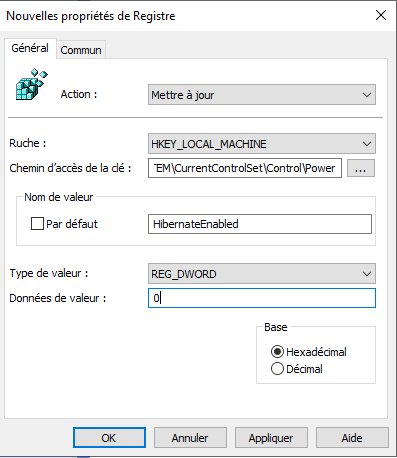
That’s it. One key, one value, zero hassle.
What Happens Under the Hood
The value HibernateEnabled = 0 is the registry equivalent of powercfg /hibernate off. Windows disables the hibernation service on the next startup and deletes hiberfil.sys on the next reboot, freeing up disk space equal to the size of the RAM.
Post-deployment verification
After gpupdate /force and reboot:
# Should return 0
Get-ItemPropertyValue "HKLM:\SYSTEM\CurrentControlSet\Control\Power" -Name HibernateEnabled

# hiberfil.sys should no longer exist
Test-Path C:\hiberfil.sys
# Confirms hibernation status
powercfg /query SCHEME_CURRENT SUB_SLEEP HIBERNATEIDLE