I’m not against IPv6; it’s just that on a LAN that doesn’t need it, it’s pointless—it’s a box that’s checked by default in the network card settings that nobody asked for.
We have a LAN. It runs on IPv4. It’s always run on IPv4. It will run on IPv4 until we change our infrastructure or the sun’s heat engulfs the Earth, whichever comes first.
And yet, every time we check a network adapter on a Windows machine, we see this:
> ☑ Internet Protocol version 6 (TCP/IPv6)
Checked. Always checked.
You can uncheck it manually on one machine, two machines, ten machines. But in an infrastructure with dozens of workstations—and especially when new machines join the domain regularly—it’s a never-ending task. It’s like trying to empty the ocean with a teaspoon.
The clean solution is a GPO.
Why not just uncheck the box?
Manual disabling only applies to the network interface visible in the manager. Add a new NIC, perform a redeployment, or reinstall—and IPv6 returns to its preferred state: checked by default, silent, useless.
The GPO we’re going to create works in two layers:
- The
DisabledComponentsregistry key — functionally disables IPv6 on all interfaces, including those that don’t exist yet. - A PowerShell script at startup — visually unchecks the box on each NIC, so the displayed status matches reality.
What you need to know before you start
The magic value: 0xFF, not 0xFFFFFF
The DisabledComponents key in the Windows registry is a bitmask. Each bit enables or disables a specific IPv6 feature. The value 0xFF (255 in decimal) sets the 8 relevant bits to 1 and disables IPv6 completely.
0xFFFFFF — which is often copied and pasted on forums — corresponds to nothing documented in the bitmask. The behavior is unpredictable, and on some versions of Windows it causes a 5-second delay at startup during the Pre-Session Init phase. That’s not what we want.
Correct value: 0xFF (REG_DWORD, hexadecimal)
The Case of Domain Controllers
Microsoft explicitly advises against disabling IPv6 on domain controllers. The reason is counterintuitive: Windows uses IPv6 internally on DCs, via the loopback address ::1, for certain DNS lookups. This isn’t a matter of external network communication—it’s part of Windows’ internal architecture since Server 2008.
Disabling IPv6 on a DC can cause DNS timeouts, slow Kerberos authentication, and AD replication issues.
The solution: do not apply this GPO to DCs. If, like me, your DCs are in a separate OU and the GPO is only linked to the SERVERS and STATIONS OUs, you don’t need to do anything. Otherwise, item-level targeting in the Registry Item allows you to automatically exclude domain controllers.
Security Bonus — CVE-2024-38063
Disabling IPv6 mitigates CVE-2024-38063, an RCE vulnerability in the Windows TCP/IP stack. This isn’t the main reason for this GPO, but it’s always good to know (and to include in the security report if you need to justify its existence).
Creating the GPO
Step 1 — Create and link the GPO
In GPMC:
Right-click the target OU → Create a GPO in this domain and link it here
Name: Reg No IPv6
Link to SERVERS and STATIONS. Not to Domain Controllers.
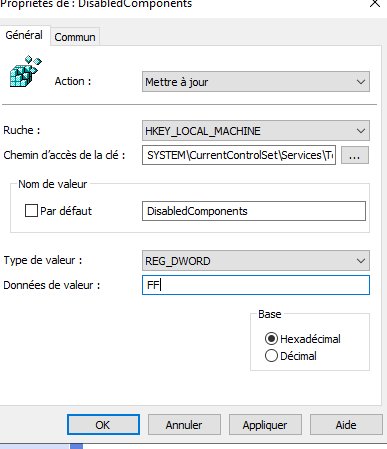
Step 2 — The registry key
Computer Configuration → Preferences → Windows Settings → Registry
→ New → Registry Item
| Field | Value |
|---|---|
| Action | Update |
| Hive | HKEY_LOCAL_MACHINE |
| Path | SYSTEM\CurrentControlSet\Services\Tcpip6\Parameters |
| Value Name | DisabledComponents |
| Type | REG_DWORD |
| Data | FF (hexadecimal) |
> "Update" action: creates the key if it doesn’t exist, updates it if it already exists. That’s what we want.
Step 3 — The PowerShell startup script
This script visually unchecks IPv6 on each network adapter. Without it, the registry key does its job but the checkbox remains checked in the interface — which can be confusing during an audit or troubleshooting.
Create an ipv6.ps1 file with this content:
Get-NetAdapter | Disable-NetAdapterBinding -ComponentID ms_tcpip6
Place this file in the GPO’s Scripts folder:
\\domain\SYSVOL\domain\Policies\{GPO-GUID}\Machine\Scripts\Startup\
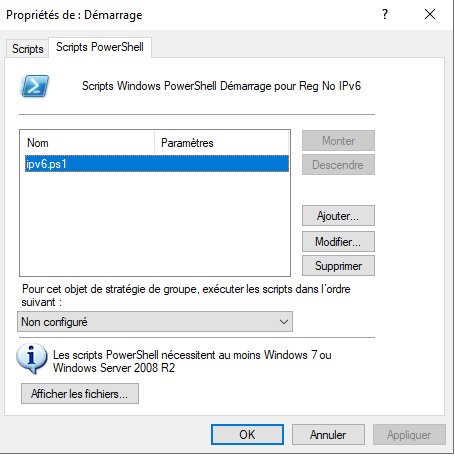
The GUID can be found in the GPO properties. Then, in GPMC:
Computer Configuration → Policies → Windows Settings → Scripts → Startup
→ "PowerShell Scripts" tab → Add → Browse → ipv6.ps1
Post-deployment verification
After gpupdate /force and a reboot on a test machine:
# Should return 255
Get-ItemPropertyValue "HKLM:\SYSTEM\CurrentControlSet\Services\Tcpip6\Parameters" -Name DisabledComponents

# Should no longer return any active IPv6 addresses
Get-NetIPAddress -AddressFamily IPv6

# Should display False on each NIC
Get-NetAdapterBinding -ComponentID ms_tcpip6