OneDrive is the perfect example of software you didn’t ask for, don’t want, but keeps coming back anyway. It reinstalls itself, restarts, redirects your folders, and looks you in the eye with a smile while doing it, ready to sync your documents somewhere in the Microsoft cloud. Here’s how to end this toxic relationship.
On a corporate network—or even a personal setup—OneDrive means:
- Scheduled tasks running in the background on every machine
- A service that generates network traffic even before the user is logged in
- Windows folders (Documents, Desktop, Pictures) that have an annoying tendency to migrate to the cloud if you’re not careful
- And of course, the "Save documents to OneDrive by default" checkbox enabled by default
The GPO we’re going to create cuts all of this off at the root, in three layers.
Prerequisites — The ADMX Central Store
This GPO uses OneDrive-specific ADMX templates. Before you begin, make sure your domain’s Central Store is properly populated.
Creating the Central Store REMINDER
If you see the message "definitions retrieved from the local computer" in the GPMC, then the Central Store does not yet exist. This is a problem: the templates are being read from the machine editing the GPO, not from a centralized location. On an infrastructure that has migrated from Server 2016 to 2022, for example, you may end up with templates from older versions coexisting with the new ones—and settings that disappear or contradict each other.
The clean solution: copy all Windows templates to the Central Store.
On the DC, open a command prompt as an administrator:
robocopy C:\Windows\PolicyDefinitions ^
  C:\Windows\SYSVOL\sysvol\domain\Policies\PolicyDefinitions /E
This command copies all ADMX and ADML files (including all language folders) in a single pass, without overwriting existing files.
Retrieve the OneDrive ADMX Files
A little gift from Microsoft: the OneDrive client’s ADMX templates are not included in Windows Server. They are bundled with the OneDrive client itself, which we obviously won’t be installing on a server.
The official method is to install OneDrive on a workstation via Winget to retrieve the files:
winget install Microsoft.OneDrive
The ADMX files are then located in:
%localappdata%\Microsoft\OneDrive\<buildnumber>\adm\
  OneDrive.admx
  fr-FR\
    OneDrive.adml

Copy these two files to the Central Store:
OneDrive.admx  →  ...\PolicyDefinitions\
OneDrive.adml  →  ...\PolicyDefinitions\fr-FR\
Once the Central Store is populated, reload the GPMC. The message should display "definitions retrieved from the Central Store".
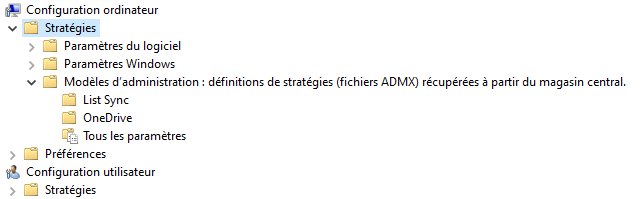
> Note for migrated environments: if you are coming from Server 2016, you may see two OneDrive nodes in the GPMC — one from SkyDrive.admx (the former name of OneDrive, copied via Robocopy) and one from the new OneDrive.admx. This is normal; both coexist. The SkyDrive node contains the setting Prevent the use of OneDrive for file storage — which is still valid and which we will use.

GPO Architecture — 3 Layers
A single layer is not enough. OneDrive uses several mechanisms to keep itself running:
- ADMX policies (the visible layer)
- Registry keys (the silent layer)
- Scheduled tasks (the layer that brings everything back to life)
All three are required.
Creating the GPO
In the GPMC:
Right-click the target OU → Create a GPO in this domain and link it here
Name: OneDrive
Link to Domain Controllers, SERVERS, WORKSTATIONS — OneDrive has no business being anywhere else on this network.
Layer 1 — ADMX Templates
SkyDrive node (legacy):
Computer Configuration → Policies → Administrative Templates
  → Windows Components → OneDrive (SkyDrive node)
| Setting | Value |
|---|---|
| Prevent the use of OneDrive for file storage | Enabled |
| Prevent the use of OneDrive for file storage on Windows 8.1 | Enabled |
| Save documents to OneDrive by default | Disabled ⚠️ |
> The last setting is the classic trap: its name might suggest it’s harmless, but setting it to Enabled forces saving to OneDrive. It must be Disabled.
Modern OneDrive node:
Computer Configuration → Policies → Administrative Templates
  → Windows Components → OneDrive (modern node)
| Setting | Value |
|---|---|
| Prevent the sync app from automatically signing in users with existing credentials | Enabled |
| Prevent users from moving their Windows known folders to OneDrive | Enabled |
| Prompt users to move Windows known folders to OneDrive | Disabled |
| Silently move Windows known folders to OneDrive | Disabled |
Layer 2 — GPP Registry
Computer Configuration → Preferences → Windows Settings → Registry
5 keys to create, all set to "Update":
Keys in HKLM\SOFTWARE\Policies\Microsoft\Windows\OneDrive:
| Value Name | Type | Data |
|---|---|---|
DisableFileSyncNGSC |
REG_DWORD | 1 |
DisablePersonalSync |
REG_DWORD | 1 |
DisableFileSync |
REG_DWORD | 1 |
DisableLibrariesDefaultSaveToOneDrive |
REG_DWORD | 1 |
Key in HKLM\SOFTWARE\Microsoft\OneDrive:
| Value Name | Type | Data |
|---|---|---|
PreventNetworkTrafficPreUserSignIn |
REG_DWORD | 1 |
This last key blocks all OneDrive network traffic even before the user logs in. It is what prevents OneDrive from contacting Microsoft servers when the machine starts up.

Layer 3 — Startup PowerShell Script
This is the anti-resurrection layer. OneDrive scheduled tasks are the main vector for silent reinstallation—they recreate themselves after certain Windows updates and can restart the client even when everything else is blocked.
Create a onedrive_kill.ps1 file:
# Disables all OneDrive scheduled tasks
Get-ScheduledTask | Where-Object { $_.TaskName -like "*OneDrive*" } | Disable-ScheduledTask

# Removes the Run key from the default profile
# (prevents automatic installation for new users)
$DefaultProfile = "C:\Users\Default\NTUSER.DAT"
reg load HKLM\DEFAULT_USER $DefaultProfile
reg delete "HKLM\DEFAULT_USER\Software\Microsoft\Windows\CurrentVersion\Run" /v OneDriveSetup /f
reg unload HKLM\DEFAULT_USER
Place this file in the GPO's Scripts folder and add it to:
Computer Configuration → Policies → Windows Settings → Scripts → Startup
→ "PowerShell Scripts" tab → Add → onedrive_kill.ps1
Post-deployment verification
After gpupdate /force and reboot:
# Check registry keys
Get-ItemProperty "HKLM:\SOFTWARE\Policies\Microsoft\Windows\OneDrive"

# Check OneDrive scheduled tasks (should return empty or "Disabled")
Get-ScheduledTask | Where-Object { $_.TaskName -like "*OneDrive*" } | Select-Object TaskName, State

# OneDrive should not be in the list of processes
Get-Process -Name OneDrive -ErrorAction SilentlyContinue
```</buildnumber>