The Problem
Anyone who has been managing Active Directory for a few years knows this: GPO enforcement can sometimes be unpredictable. In theory, Windows applies policies at startup, at logon, and then every 90 minutes with a random delay. In practice, a GPO might fail to propagate, a machine might retain an old configuration, or a change might take an unreasonably long time to propagate.
Running gpupdate /force systematically at startup forces a complete reapplication of all policies, whether they’ve changed or not. It’s like wearing both a belt and suspenders: we don’t rely on the native cycle—we force it.
We take this opportunity to flush the DNS cache at the same time with ipconfig /flushdns—which is useful for starting fresh with a clean DNS resolution on every boot, especially after record changes or server migrations.
Why a startup script and not a logon script
This is the technical point that makes all the difference.
A logon script runs in user context—with the permissions of the person logging in. If the user has limited privileges (which is the case on a well-secured network), the script inherits those limitations and may fail silently.
A startup script runs in the SYSTEM context—the most privileged account on the machine—at boot time, even before a user logs in. There is no dependency on user permissions, and no limitations.
On my infrastructure, the old version ran as a logon script and depended on user permissions. Switching to a startup script in the SYSTEM context eliminates this vulnerability: gpupdate runs reliably at every boot, regardless of who will subsequently use the machine.
Creating the GPO
In the GPMC:
Right-click the target OU → Create a GPO in this domain and link it here
Name: Startup GPUpdate FlushDNS
Link it to COMPUTERS (and SERVERS if you want the same reliability on the server side).
The PowerShell Script
Create a startup_maintenance.ps1 file:
# Force all GPOs to apply
gpupdate /force /wait:0

# Flush the DNS cache
ipconfig /flushdns
The /wait:0 parameter is important: it tells gpupdate not to block the script while waiting for processing to complete. The command runs and returns control immediately, allowing the machine to continue booting while the GPOs are applied. Without this, the boot process could be delayed if a policy takes a long time to process.
Deploy the script
Place the file in the GPO’s Scripts folder:
\\domain\SYSVOL\domain\Policies\{GUID-GPO}\Machine\Scripts\Startup\
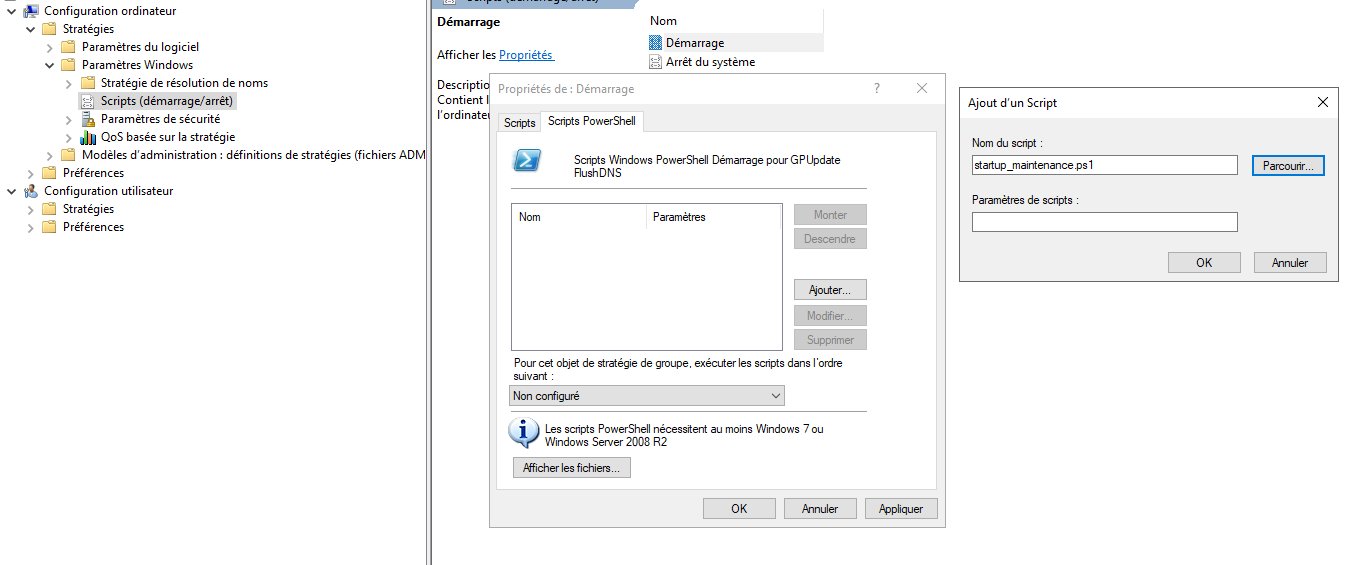
Then, in the GPMC:
Computer Configuration → Policies → Windows Settings → Scripts → Startup
→ "PowerShell Scripts" tab → Add → Browse → startup_maintenance.ps1
An important detail to note
Running gpupdate /force at boot triggers an application cycle that is in addition to the one Windows performs natively at startup. This is intentionally redundant—it’s exactly what you want when you’ve experienced erratic GPO application. The slight increase in boot time is more than offset by the improved reliability.
Note: Running gpupdate /force as a startup script reliably refreshes the computer policy. The user policy, on the other hand, is applied anyway during the first login after boot.
Post-Deployment Verification
After rebooting a test machine, in Event Viewer:
Event Viewer → Application and Service Logs
→ Microsoft → Windows → GroupPolicy → Operational
Event IDs 4115 and 5115 confirm that the startup script has run. You can also verify that the policy was recently applied:
gpresult /r /scope:computer
Summary
| Component | Details |
|---|---|
| GPO Name | Startup GPUpdate FlushDNS |
| Method | Startup PowerShell script |
| Context | SYSTEM (no dependency on user permissions) |
| Script | startup_maintenance.ps1 |
| Commands | gpupdate /force /wait:0 + ipconfig /flushdns |
| Target | WORKSTATIONS (plus optional SERVERS) |
GPO Library — Back to Index