Parts 1 and 2 described the migration of my internal PKI, first on the Linux side and then on the Microsoft AD CS side. This third installment is a side project, born out of a change in Windows behavior rather than a planned initiative: since April 2026, any unsigned .rdp file triggers an aggressive security warning—even for files I create myself, on my own network, to connect to my own machines.
> This isn’t an article about a clean, straightforward project. It’s the story of a project that worked right out of the gate on the server side, but gave me a hard time on the seemingly simplest part: reliably running a script in the background.
The Trigger: CVE-2026-26151
In April 2026, Microsoft tightened the behavior of Remote Desktop Connection (mstsc) regarding .rdp files: a file not digitally signed by a trusted publisher now triggers a red banner "Unknown publishing server," which implicitly prompts a reflexive click—exactly the opposite of the intended effect—and which, in practice, blocks certain redirection methods (such as smart cards) until the warning is acknowledged.

On my personal infrastructure, where I generate .rdp files on the fly on each workstation rather than storing them in a central folder, this banner has become a daily nuisance. Rather than reflexively ignoring it (which, over time, desensitizes you to the actual warning), I took advantage of the fact that my internal AD CS was already in place to sign these files automatically.
The Code Signing Certificate
Step 1: Create a new certificate template dedicated to code signing (xxxxxxxxxxxx-RDP-File-Signing), with the Code Signing EKU (1.3.6.1.5.5.7.3.3), a modern KSP (RSA 3072, SHA-256), and a subject based on the DNS name of the machine holding the key.


The CONTEXT_E_ROLENOTFOUND Pitfall
The first real obstacle—and the most time-consuming one—was that any enrollment attempt (whether autoenrollment or manual certreq -enroll -machine) consistently failed with CONTEXT_E_ROLENOTFOUND (0x8004e00c)—"the specified role has not been configured for the application." No trace in the CAPI2 logs, no trace on the certificate authority side. A silent error with no obvious clues.
I checked the following in order: the template’s ACLs, the key storage provider, the EKU extensions, the subject name (where I actually found a minor error—the user’s primary name (UPN) was selected in the subject name format, which is inappropriate for a machine certificate; I corrected this while I was at it, though it didn’t explain the main error), the compatibility settings, and the key attestation. Everything was correct.

The actual cause, found after combing through the documentation from start to finish: I had duplicated this template from the built-in Microsoft "Code Signing" template, which is—at the Active Directory schema level—a User-type template. This type marker is not displayed in any tab of certtmpl.msc: it is silently inherited from the source template at the time of duplication, regardless of the ACL permissions subsequently granted to a machine account. A template intended to issue a certificate for a machine account must be duplicated from a template that is already of the Computer type (for example, “Computer” or “Web Server”), never from a User template that has been modified afterward, no matter how correctly the other settings may be configured.
Once the template was recreated from a Computer template and then reconfigured identically (EKU, KSP, subject), the enrollment worked on the first try.
Along the way, before identifying the actual cause, I also ran into a more common permissions error—which is worth documenting because it can waste time if mistaken for the real problem:

Chosen Architecture: The Key Remains Centralized
On my infrastructure, .rdp files are created locally, on the fly, on each workstation—there’s no central folder to monitor. Two options were available for signing these files:
- Option B (rejected): Duplicate the private signing key on each workstation to sign locally. Simple in theory, but this multiplies the attack surface by the number of workstations, and compromising a single workstation compromises the signing key for the entire infrastructure.
- Option A (selected): Keep the private key centralized on the certificate authority (AD-CS) and have it signed remotely via PowerShell Remoting, on demand, whenever a local
.rdpfile needs to be signed.

The "RdpSigning" JEA Endpoint
To avoid granting full administrative WinRM access to the AD-CS, I built a dedicated JEA (Just Enough Administration) endpoint: a restricted PowerShell session (RestrictedRemoteServer), running under a virtual account (RunAsVirtualAccount), which exposes only a single function (Invoke-RdpSign) and nothing else on the system.
Since my AD forest has two domains, access is scoped to the groups Domain1\Domain Admins and Domain2\Domain Admins—via JEA’s RoleDefinitions, which natively support multiple domains without requiring the creation of a cross-domain universal group (I prefer to avoid this kind of dependency when a native, domain-isolated solution exists).
Three pitfalls encountered during development:
- Versioned module structure without a manifest. A directory tree
Modules\RdpSigningJEA\1.0\...directory tree is invisible to module discovery by name if it does not contain a.psd1manifest file. Fixed by flattening the module (removing the version subfolder). Select-Object -Firstis not supported in aRestrictedRemoteServersession, even within a trusted, imported module function. Workaround: use standard array indexing.$env:TEMPis not defined for aRunAsVirtualAccountvirtual account (no user profile loaded). Fixed by using a fixed path (C:\ProgramData\RdpSigningJEA\Temp) rather than relying on a missing environment variable.
An end-to-end test from a client machine validated the endpoint: Invoke-Command -ConfigurationName RdpSigning call returned Success=True with the correct signature certificate thumbprint.
The client-side watcher
On the client side, a PowerShell script based on FileSystemWatcher and Register-ObjectEvent monitors the Desktop, detects any .rdp files created or modified, calls the JEA endpoint, and writes back the signed file received in response.
Two pitfalls to note:
$using:is not valid in a-Actionscriptblock ofRegister-ObjectEvent(this syntax is only valid inInvoke-CommandorStart-Job). This was fixed by passing the necessary values via-MessageData, which are then retrieved using$Event.MessageData.- Race condition with mstsc. The Remote Desktop client sometimes keeps the
.rdpfile open for writing for a brief moment after it is created. With a fixed 800-ms delay before reading, the watcher would sometimes read the file too early, resulting in a corrupted file—an end-of-file property appearing after the signature block:

Fixed by replacing the fixed delay with a wait loop that attempts an exclusive open of the file (FileShare::None) until mstsc has actually released it, before reading and signing it.

Making the watcher persistent: the project that went wrong
This is the least glorious part of this article, and probably the most useful for anyone attempting the same thing: once validated, the watcher only ran in interactive PowerShell—without persistence. Close the window or restart the computer, and nothing is monitoring the desktop anymore.
The original intention was simple: a scheduled task deployed via GPO, under User Configuration → Preferences → Scheduled Tasks, triggered at logon, run in the context of the logged-in user (%LogonUser%, required for Kerberos authentication against the JEA endpoint), targeted via security group filtering (Item-Level Targeting) to Domain Admins rather than by OU—since admin accounts are not isolated in a dedicated OU.


It never worked properly. The task consistently appeared as rejected in the detailed gpresult report, despite seemingly correct targeting (valid group and SID, account was indeed a member of the Domain Admins group). Moving the preference item to Computer Configuration caused it to “trickle down”—but at the cost of breaking the very logic of the setup (the %LogonUser% context is unreliable in computer-side processing, where no user is necessarily logged in at the time of processing).
By trying a loopback processing method (Fusion mode) to apply the user settings from a GPO linked to the workstation’s OU regardless of the admin account’s actual OU, and then switching to a standard logon script to replace the GPP scheduled task, I ended up causing the most concrete issue of the project: a synchronous login script by default, which mistakenly pointed directly to the watcher itself (which, by design, never terminates) rather than to a detached launcher, caused a workstation’s login process to hang on a static black screen — with Windows waiting indefinitely for a script that never finishes.
The lesson was clear enough to warrant a change in approach rather than continuing to pile on patches. Within a scope limited to a few admin accounts—not the ~27 machines in the fleet—the cost-benefit ratio of a GPO (group filtering, loopback, application timing, risk of session lockup) was disproportionate. The solution chosen: a local scheduled task, created once per machine and per admin account with a simple PowerShell command (Register-ScheduledTask), without using a GPO. Less elegant on paper than a centralized deployment, but reliable, quick to diagnose, and with no risk of locking up a session domain-wide.
Testing and Validation
Once the watcher was operational (regardless of the startup mechanism), the entire chain was validated from start to finish: an .rdp file created on the Desktop is detected, signed via the JEA endpoint, and rewritten with its signature. On the GPO side, the SHA1 thumbprint of the signing certificate was declared as a trusted publisher (Specify the SHA1 thumbprints of certificates representing trusted .rdp file publishers), first tested locally via the registry (HKLM\SOFTWARE\Policies\Microsoft\Windows NT\Terminal Services, CertificateThumbprints value) before any actual GPO deployment.
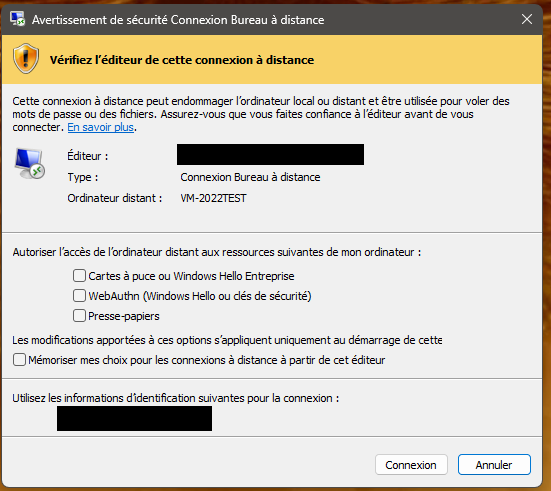
Result: The banner changes from red (“Unknown publishing server”) to yellow, indicating a recognized and named publisher.
The Assumed Limitation
One issue kept me going in circles longer than necessary: the yellow banner “Verify the publisher of this connection” reappears with every connection, even for a publisher declared to be trusted. I tested several possibilities before finding the correct explanation: resetting the redirection properties (smart card, clipboard) had no effect, the hypothesis that mstsc was rewriting or deleting the signature upon exit—disproved by a byte-by-byte comparison of the file before and after—and adding the certificate to the Trusted Publishers store—which also had no effect.
The correct answer, found in Microsoft’s official announcement reported by the tech press: this banner reappears with every connection by design, even for a declared trusted publisher. This is a deliberate anti-phishing security measure, not a configuration flaw. Only a completely different message—an educational one displayed just once per account (“What is an RDP file?”)—is actually cached; the publisher verification banner itself is never cached.
The actual goal of this project—to eliminate the red “unknown publisher” banner, which prompts a reflexive click and breaks the smart card redirection—has been successfully achieved. The yellow banner that remains is the best that can be achieved in this new security model; it should be documented as is rather than attempting to make it disappear.
Key Takeaways
- A template type silently inherited (User vs. Computer) during duplication can cause a completely silent registration error—with no trace in the logs, making it particularly difficult to diagnose.
- Centralizing a signature key rather than distributing it across each workstation is worth the cost of an additional round-trip over the network—especially with JEA, which allows you to expose a specific action without granting full administrative access.
- A login script that never terminates must never be called directly in synchronous mode—always use a detached launcher that returns control immediately.
- When faced with a stubborn GPO mechanism (ILT denied, erratic loopback, blocking script), it’s sometimes better to acknowledge that a simpler, more localized solution is more than sufficient for the actual scope, rather than insisting on a centralized architecture out of principle.
- A security behavior that appears to be a bug after several tests that seem to disprove it is sometimes a deliberate design choice by the vendor—check the official documentation before continuing to search for a workaround that doesn’t exist.
Sources and References
- Windows is getting stronger RDP file protections to fight phishing attacks — Help Net Security — April 2026 security hardening for unsigned .rdp files and the behavior of the publisher verification banner on every connection
- Understanding security warnings when opening Remote Desktop (RDP) files — Microsoft Learn — official documentation on the banner’s behavior based on the file’s signature/trust status
- about_Just_Enough_Administration — Microsoft Learn — RoleCapabilities, RunAsVirtualAccount, RestrictedRemoteServer
- rdpsign — Microsoft Learn — format of signed .rdp files, signscope/signature fields
- about_Group_Policy_Loopback_Processing — Merge/Replace behavior — mechanics of loopback processing
- Run Logon Scripts Synchronously — Group Policy Setting Reference — Default synchronous behavior of logon scripts and risk of session lockup