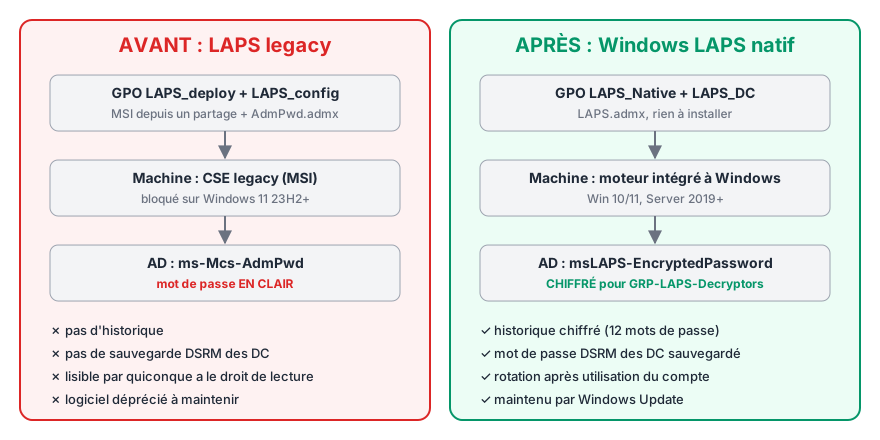
The LAPS on my personal infrastructure had been running for years on the old Microsoft MSI: one GPO to deploy it, another to configure it. Until one day, a workstation that had been upgraded to Windows 11 24H2 started prompting for a restart every time gpupdate ran. The legacy MSI no longer had a place in the environment. Here’s the migration to Windows LAPS, built into Windows since April 2023, focusing on the pitfalls that cost me time.
> The Essentials in 30 Seconds > > - Legacy LAPS (the 2016 MSI) has been deprecated since Windows 11 23H2, and its installation is blocked on that version. > - Windows LAPS is built into Windows 10/11 and Server 2019+: you extend the schema, create a GPO—that’s it. > - It offers features that the legacy version lacked: encrypted passwords, history, and DSRM backup for domain controllers. > - The order matters: remove the MSI first, delete the old GPOs last. > - The real pitfall is replication: a GPO that hasn’t yet arrived in SYSVOL on a remote site’s DC is ignored.
Legacy, Emulation, Native
| Legacy LAPS | Windows LAPS (emulation) | Native Windows LAPS | |
|---|---|---|---|
| Installation | MSI + client-side extension (CSE) | Integrated | Integrated |
| Configuration | AdmPwd.admx GPO |
Reads the legacy GPO | LAPS.admx GPO |
| AD Storage | ms-Mcs-AdmPwd, in plain text |
ms-Mcs-AdmPwd, in plain text |
msLAPS-EncryptedPassword, encrypted |
| History / DSRM | No | No | Yes |
Emulation mode allows a recent version of Windows to apply a legacy GPO using its native engine, provided that the MSI is not installed. This was already the case on my recent workstations. Two documented rules dictate the entire migration process:
- if the legacy CSE is installed, Windows LAPS defers to it;
- if a native policy exists, it takes precedence over the legacy policy.
Current Status
The context (anonymized): a two-domain forest, srv.example.internal (servers) and ws.example.internal (workstations), six Server 2022 domain controllers at functional level 2016, two AD sites, about thirty Windows 11 and Server 2022 machines, and a managed local account referred to here as adm-local.
Four checks before making any changes: where the legacy GPOs are linked (Get-GPOReport), the schema state, the OS on each machine, and the presence of the legacy CSE. For this last point, we check the key for its extension:
Invoke-Command -ComputerName $machines {
  Test-Path 'HKLM:\SOFTWARE\Microsoft\Windows NT\CurrentVersion\Winlogon\GPExtensions\{D76B9641-3288-4f75-942D-087DE603E3EA}'
}
The results:
- 100% of the fleet was compatible with the native version (Server 2019+ or Windows 10/11 updated as of April 2023), so the legacy system could be completely phased out;
- the schema had never been extended;
- two domain controllers had the legacy CSE installed, and two others still carried a legacy password in plain text. These were remnants from their time as member servers before promotion. On a DC, this CSE would run the password for a domain account if a legacy policy applied to it. I uninstalled it and purged the attributes first.
The Migration Plan

Removing the MSI first switches each machine to emulation mode, with the legacy GPO still in place. This ensures there is no downtime while preparing for the native installation.
Step 1: Remove the MSI
The Remove > Uninstall Immediately option in the deployment GPO did not uninstall anything. The package was named “… (2),” indicating a previous redeployment, and the GPO-based software installation only removes what that specific deployment installed. So I uninstalled it directly:
Invoke-Command srv-01, srv-02 {
  (Start-Process msiexec -ArgumentList '/x {97E2CA7B-B657-4FF7-A6DB-30ECC73E1E28} /qn /norestart' -Wait -PassThru).ExitCode
}
For unreachable machines, the same command—conditional on the Test-Path above—runs as a startup script in the future native GPO.
Two details to keep in mind:
- Curly braces:
msiexec /x {GUID}typed as-is in PowerShell runs without the GUID, because{…}is interpreted as a script block, and with/qn, failure is silent; - Some forgotten "Deny" rules were lingering in the GPO delegation, originally set to bypass the 24H2 loop. These must be removed.
Step 2: Extend the schema
This is the irreversible step of the process. Before running it, I verify that repadmin /replsummary shows 0 failures and take a snapshot of the schema master. Then, using an account that is temporarily a member of the Schema Admins group:
Update-LapsADSchema -Verbose
The cmdlet adds six ms-LAPS-* attributes, an extended right, and attaches them to the computer class. Immediately afterward, I clear the Schema Admins group: in my environment, this group remains empty at all times.
The subsequent repadmin /syncall returned error 8418 to the remote site: the domain partitions had attempted to switch to the new schema prematurely. A second syncall a few minutes later succeeded. This is a common transient issue.
Step 3: Permissions
Set-LapsADComputerSelfPermission -Identity 'OU=STATIONS,DC=ws,DC=example,DC=internal' -Domain ws.example.internal
$sid = (Get-ADGroup GRP-LAPS-Decryptors -Server srv.example.internal).SID.Value
Set-LapsADReadPasswordPermission -Identity 'OU=STATIONS,DC=ws,DC=example,DC=internal' -AllowedPrincipals $sid -Domain ws.example.internal
The first command applies to every computer OU, while the second applies to computer OUs outside the domain controller. The read group is universal because my administrative account and the computers are not in the same domain.
I’m passing the SID instead of the name: the group had just been created, and the name couldn’t yet be resolved from the other domain (“Failed to resolve … to a SID”). A SID is independent of language and replication.
Step 4: Native GPOs, in PowerShell
Four GPOs to create: LAPS_Native and LAPS_DC, in each domain. The LAPS settings are simply registry values under HKLM\Software\Microsoft\Windows\CurrentVersion\Policies\LAPS, which Set-GPRegistryValue can write:
$k = 'HKLM\Software\Microsoft\Windows\CurrentVersion\Policies\LAPS'
function Set-LapsGpo($name, $domain, [switch]$DC) {
  New-GPO -Name $name -Domain $domain | Out-Null
  $v = @{ BackupDirectory=2; PasswordComplexity=4; PasswordLength=14; PasswordAgeDays=30
          PasswordExpirationProtectionEnabled=1; ADPasswordEncryptionEnabled=1; ADEncryptedPasswordHistorySize=12 }
  if ($DC) { $v.ADBackupDSRMPassword = 1 } else { $v.PostAuthenticationActions = 3; $v.PostAuthenticationResetDelay = 24 }
  $v.GetEnumerator() | % { Set-GPRegistryValue -Name $name -Domain $domain -Key $k -ValueName $_.Key -Type DWord -Value $_.Value | Out-Null }
  Set-GPRegistryValue -Name $name -Domain $domain -Key $k -ValueName ADPasswordEncryptionPrincipal -Type String -Value $sid | Out-Null
  if (-not $DC) { Set-GPRegistryValue -Name $name -Domain $domain -Key $k -ValueName AdministratorAccountName -Type String -Value 'adm-local' | Out-Null }
}
Key points to remember:
- Same account as before, which makes the transition seamless. Windows LAPS does not create a custom-named account: it must already exist;
- Encryption, which requires a Domain Functional Level of 2016;
- 12-day history, useful after restoring a machine;
- reset and logout 24 hours after the account is used;
LAPS_DCbacks up the DSRM. For this account, the configured decryptor is ignored: only domain admins on the DC can read it.
The catch: In my first draft, I had written PwdExpirationProtectionEnabled, which is the legacy name. The native setting expects PasswordExpirationProtectionEnabled. A scripted GPO doesn’t provide any warning. Only the HTML report (Get-GPOReport -ReportType Html) revealed the error, listing the value under “Other Registry Settings.” Always review this report.
Step 5: The pilot, and the question “Which DC?”
I ran a pilot test for each target type (workstation, server, DC), with the GPO linked to the OU and security filtering restricted to the pilot machine. The server and DC passed on the first try. The workstation taught me three lessons in a row.
1. The GPO didn’t exist for the workstation. gpresult didn’t list it anywhere. The Microsoft-Windows-LAPS/Operational log (event 10055) showed that the workstation was using a DC from the remote site. On that DC, the GPO was version 15 on the AD side but only version 13 on the SYSVOL side. I had to force SYSVOL replication:
Invoke-Command dc-ws-03 {
  Install-WindowsFeature RSAT-DFS-Mgmt-Con | Out-Null
  dfsrdiag syncnow /partner:dc-ws-02 /RGName:"Domain System Volume" /Time:1
}
2. “Still legacy” according to the console. The workstation had indeed written its encrypted password, but to the remote DC, whereas my query was directed at a DC on the main site. You must query the correct DC. Note that -Domain and -DomainController are mutually exclusive:
Get-LapsADPassword pc-01 -DomainController dc-ws-03 -AsPlainText
3. DecryptionStatus: Unauthorized. I had added myself to the decryption group during the session, and the Kerberos token wasn’t aware of this yet. Logging out and then logging back in was enough: Source: EncryptedPassword, DecryptionStatus: Success. The native policy had also triggered an immediate rotation of the password.
On the DC side, the displayed source is EncryptedDSRMPassword. Make a note of this password: after a system restore, the one in effect at the time of the backup is what counts, and the history allows you to retrieve it.
Steps 6 and 7: Apply the fix across the board, then clean up
In order:
- I set the
LAPS_Nativefilter to Authenticated Users; - Only then do I delete
LAPS_deployandLAPS_config, so that no machine is left unmanaged; - I purge the old plaintext passwords that a machine that has switched to native mode does not clean up:
Get-ADComputer -LDAPFilter '(&(ms-Mcs-AdmPwd=*)(msLAPS-EncryptedPassword=*))' -Server $d |
  Set-ADComputer -Server $d -Clear 'ms-Mcs-AdmPwd','ms-Mcs-AdmPwdExpirationTime'
Once the entire fleet has been migrated, you must still remove the MSI share, AdmPwd.admx/.adml, and the startup script. The legacy attributes, however, remain in the schema permanently.
> Common Mistakes
>
> - Deleting legacy GPOs first: machines remain unmanaged until the native replacement is available.
> - Leaving the legacy CSE installed: Windows LAPS hands control over to it.
> - Taking “Uninstall immediately” at face value: Check for the presence of the CSE after restarting.
> - Typing msiexec /x {GUID} in PowerShell: The curly braces form a script block.
> - Do not review the report for a scripted GPO: an incorrect value name is silently ignored.
> - Conclude that “it doesn’t work” without checking which DC the client is using, or whether the GPO is present in both AD and SYSVOL.
> - Forgetting that adding a group requires a logoff and logon.
> - Forgetting to clear ms-Mcs-AdmPwd.
What I’ve Learned
The migration comes down to just a handful of commands. Most of the time is spent elsewhere: dealing with the remnants of a configuration that’s several years old, and with multi-site replication that gives the impression that nothing is working when everything is actually in progress. Three key steps made all the difference:
- take stock before taking action;
- check the client’s LAPS log, particularly events 10023 (policy source), 10055 (DC used), and 10004 (success);
- always ask yourself, “Which DC?”.
The result: no more plaintext passwords in the directory, a history log, DSRM backups of the domain controllers, and one fewer MSI on a network that wouldn’t accept it anyway.
Sources
- Microsoft Learn — What is Windows LAPS?: platforms, legacy deprecation, emulation mode.
- Microsoft Learn — Migrate to Windows LAPS from legacy LAPS: scenarios, immediate rotation, MSI uninstallation.
- Microsoft Learn — Legacy Microsoft LAPS emulation mode.
- Microsoft Learn — Configure policy settings for Windows LAPS: value names, encryption prerequisites, DSRM behavior.
- Microsoft Learn — Get-LapsADPassword.