In the article on MAC addresses, we saw how a switch learns who is connected where, and why a broadcast eventually reaches all the devices on the network. It is precisely this “all” that becomes a problem as soon as the network grows: the workstations, servers, the printer, the IP camera, and the guest Wi-Fi network all end up in the same room, eavesdropping on each other’s conversations.
The classic solution is called a VLAN. And rather than starting with the standard definition, I’ll start with an analogy I’ve always used to explain it: a physical switch that contains several virtual switches, stacked on top of one another, which cannot see each other.
This article is intended as a supplement to the excellent Cisco ASA & Firepower FTD guide by @SilenS. His guide divides the network into zones (users in VLAN 10, DMZ in VLAN 20, internal servers in VLAN 30, management in VLAN 99) and shows how the firewall protects them. Here, I’m taking a step back to explain what a VLAN is and how the switch creates it. I’ve used his numbering and addressing scheme so you can switch between the two articles without having to re-read anything.
> The Essentials in 30 Seconds > > - A VLAN (Virtual LAN) divides a physical switch into several isolated virtual switches: each has its own ports, MAC address table, and broadcast domain. > - An access port belongs to a single virtual switch. The device connected to it isn’t even aware that VLANs exist. > - A trunk port carries multiple virtual switches over a single cable. To determine which VLAN each frame belongs to, a 4-byte 802.1Q tag is attached to it. > - Two VLANs never communicate directly with each other: traffic must go through Layer 3 (router, Layer 3 switch, or firewall). That’s where filtering takes place. > - A VLAN isolates; it does not protect on its own: a single misconfigured trunk is enough to breach the isolation.
The Problem: One Switch, One Broadcast Domain
A switch straight out of the box behaves like a smart power strip. All of its ports belong to the same Layer 2 network: an ARP request sent on port 1 is copied to the other 23, and a frame destined for an unknown MAC address is flooded everywhere.
As long as there are only ten machines, no one complains. But as soon as you want to separate uses, you run into three limitations:
- Noise: every broadcast (ARP, DHCP, mDNS, NetBIOS…) wakes up all the network cards in the domain. With a few hundred machines, this becomes significant.
- Privacy: A compromised machine in this domain can eavesdrop, spoof (ARP spoofing), or scan everything sharing its Layer 2 segment.
- Policy: It’s impossible to say “guests can access the Internet but not the NAS” if guests and the NAS are on the same segment, because their traffic doesn’t pass through any equipment capable of filtering it.
The solution before VLANs was to buy one switch per network. One switch for users, one for the DMZ, one for servers, each connected to its own port on the router. It works perfectly… but it costs three switches, three power supplies, three times as many cables, and three times as much space in the rack.
The concept: a stack of virtual switches in a physical chassis
A VLAN is exactly this three-switch setup, but housed in a single enclosure. The physical switch becomes a chassis that hosts multiple virtual switches, and the administrator decides which front-panel port is internally connected to which virtual switch.

If we take this concept further, everything else follows naturally:
| In a true standalone switch… | …in a VLAN |
|---|---|
| It has its own ports | Each access port is assigned to a single VLAN |
| It has its own MAC table | The CAM table is indexed by the pair (VLAN, MAC): the same MAC can exist in two VLANs without conflict |
| A broadcast stays within the switch | A broadcast only leaves the switch via ports in the same VLAN |
| Two switches that aren’t connected don’t communicate | Two VLANs don’t communicate without a router |
| It is identified by a label on the front panel | It is identified by a number, the VLAN ID (1 to 4094) |
One point seems essential to understand from the start: the device connected to an access port is unaware of any of this. It sends a perfectly ordinary Ethernet frame, with no mention of a VLAN. It’s the switch that knows port 3 is connected to virtual switch 10, and ensures the frame doesn’t leave that switch.
Connecting Virtual Switches Between Two Chassis: the Trunk
This works as long as there’s only one switch. But in a rack, there’s rarely just one: a core switch, a floor switch, a Wi-Fi access point, a hypervisor. And user VLAN 10 must be available everywhere.
With separate physical switches, you’d need one cable per VLAN between each pair of chassis. Three VLANs, three cables; twenty VLANs, twenty cables. Unsustainable.
The trunk solves the problem: a single cable carrying frames from all the virtual switches. But at the other end, the switch must know which virtual switch to forward each frame to. So, only on the trunk, we add a tag that says, “This frame belongs to VLAN 10.”
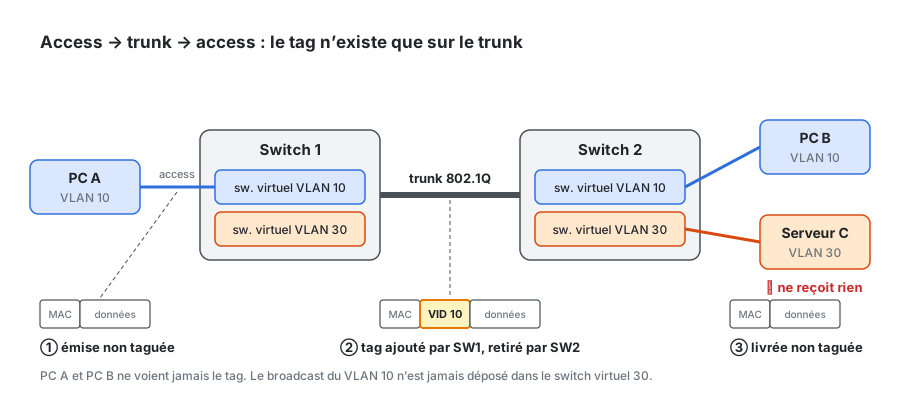
The life cycle of a frame is always the same:
- PC A transmits an untagged frame on its access port (VLAN 10).
- Switch 1 places it in its virtual switch 10. The destination is on the other side: it sends it over the trunk by adding the VID 10 tag.
- Switch 2 reads the tag, removes it, and places the frame into its own virtual switch 10.
- PC B receives it untagged on its access port. It never knew a tag had existed.
The server in VLAN 30 connected to Switch 2 doesn’t see anything passing through, even if the frame were a broadcast: it was never placed in its virtual switch.
Anatomy of the 802.1Q Tag
The tag is standardized by IEEE 802.1Q. It is 4 bytes long and is inserted into the Ethernet header, immediately after the source MAC address, where the EtherType would normally be found.
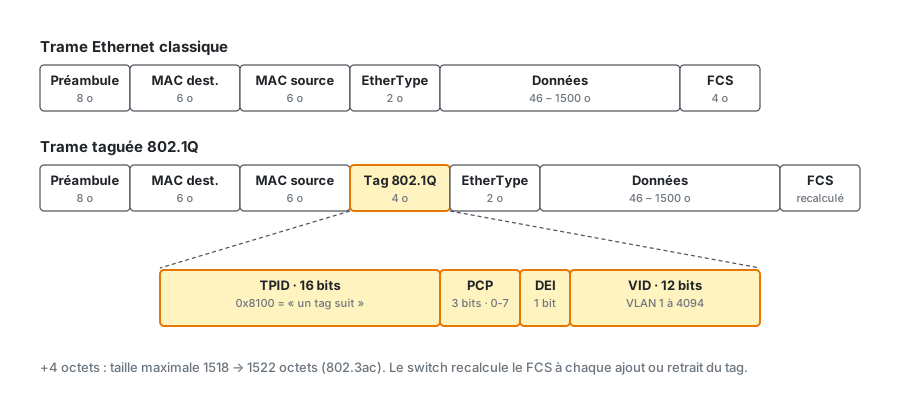
| Field | Size | Role |
|---|---|---|
| TPID | 16 bits | Always 0x8100. Placed where the receiver expects an EtherType, it signals to the receiver, “Attention: what follows is a tag.” |
| PCP | 3 bits | Priority from 0 to 7 for quality of service (the former 802.1p, now integrated into 802.1Q). Voice over IP makes heavy use of this. |
| DEI | 1 bit | Drop Eligible Indicator: “in case of congestion, drop me first.” |
| VID | 12 bits | The VLAN number. 12 bits provide 4,096 possible values, including 0 (“priority-only” frame, no VLAN) and 4,095 (reserved), leaving 1 through 4,094 available. |
Two practical consequences:
- The frame increases in size by 4 bytes. The maximum size increases from 1,518 to 1,522 bytes (802.3ac standard). All modern equipment supports this, but an older network card or a poorly written driver may drop these “too large” frames.
- The FCS is recalculated each time a tag is added or removed, since the frame’s contents change. This is handled by the switch and is invisible to the administrator.
When 4,094 VLANs aren’t enough (for carriers or multi-client hosting providers), two tags are stacked: this is QinQ (IEEE 802.1ad), with an external tag of 0x88A8. This is off-topic for a personal network, but good to know.
The Native VLAN: The Untagged Frame on a Trunk
On a trunk, what does the switch do with a frame that arrives untagged ? It places it in the native VLAN, which is VLAN 1 by default.
This is a compatibility mechanism (for devices that don’t support 802.1Q) and is also one of the most common pitfalls:
- If the two ends of a trunk do not have the same native VLAN, untagged frames leave one VLAN on side A and end up in another on side B. Two virtual switches end up merged without anyone intending it.
- The native VLAN is the entry point for a double tagging attack: an attacker located in the native VLAN forges a frame carrying two tags. The first switch removes the outer tag (the native VLAN tag, which it would never send tagged over the trunk), and the next switch reads the inner tag and delivers the frame to the target VLAN. The attack is unidirectional, but it crosses the firewall.
The solution is simple: choose an unused VLAN as the native VLAN—one with no devices inside (a “parking VLAN”)—and configure it identically at both ends.
Enabling Communication Between Virtual Switches: Inter-VLAN Routing
Let’s go back to the diagram. Two unconnected physical switches cannot exchange frames. For VLAN 10 (users) to reach VLAN 30 (internal servers), you need a router connected to both, just as with separate switches.
Three ways to do this, in order of frequency in small infrastructures:
| Method | Principle | When to Use It |
|---|---|---|
| “On-a-stick” firewall/router | A single trunk link to the firewall, which has one subinterface per VLAN (eth0.10, eth0.20…) and one gateway per network |
The most common scenario in SMBs and home networks: all inter-VLAN traffic passes through the firewall, so everything is filtered and logged |
| Layer 3 Switch (SVI) | The switch itself has one IP interface per VLAN and performs hardware-based routing | High inter-VLAN traffic volumes (servers ↔ storage), when the firewall would become a bottleneck |
| Router with one port per VLAN | One physical port on the router per VLAN, in the access layer | Legacy setup, or when the router doesn’t support 802.1Q |
In practice, each VLAN corresponds to an IP subnet, with its own gateway on the routing device. In @SilenS’s plan: VLAN 10 = 192.168.1.0/24, VLAN 20 = 10.0.10.0/24, VLAN 30 = 10.0.20.0/24. The mapping between VID and subnet does not follow any technical rules: the important thing is that it is documented and consistent across all devices.
And this is where security comes into play: it is the filtering rule on the inter-VLAN router that provides protection, not the VLAN itself. A VLAN without filtering at its boundary is like a partition with a wide-open door.
I’m deliberately stopping at this boundary, because the rest has already been covered. Which zones to create, what security levels to assign them, which ACLs and NAT configurations to set up between them: this is the core of @SilenS’s guide, which picks up exactly where this article leaves off. For the same approach using open-source software, the pfSense guide demonstrates VLAN interfaces and the “router on a stick” in practice.
Configuring Switch Ports
On the switch side, the configuration takes just a few lines. Here’s an example in Cisco IOS syntax—the most common in training—using the VLANs from @SilenS’s diagram, with an unused VLAN 999 (“parking”) as the native VLAN:
vlan 10
 name USERS
vlan 20
 name DMZ
vlan 30
 name SERVERS
vlan 99
 name MANAGEMENT
vlan 999
 name PARKING
!
interface range GigabitEthernet1/0/1 - 4
 description Internal servers
 switchport mode access
 switchport access vlan 30
 switchport nonegotiate
 spanning-tree portfast
!
interface GigabitEthernet1/0/24
 description Trunk to firewall
 switchport mode trunk
 switchport trunk native vlan 999
 switchport trunk allowed vlan 10,20,30,99
 switchport nonegotiate
And to verify:
show vlan brief
show interfaces trunk
show mac address-table vlan 30
When the virtual switch becomes literal: the hypervisor
On a hypervisor, the image is no longer just an image. Proxmox VE, for example, creates a real software switch (a Linux bridge, vmbr0) to which the VMs’ virtual network cards are connected, and whose sole physical port is… a trunk to the rack switch.
In VLAN-aware mode, this bridge behaves like a full-fledged 802.1Q switch:
auto vmbr0
iface vmbr0 inet manual
        bridge-ports eno1
        bridge-stp off
        bridge-fd 0
        bridge-vlan-aware yes
        bridge-vids 2-4094
All you need to do next is enter a number in the VLAN Tag field of a VM’s network interface: its virtual port becomes an access port in that VLAN. The VM sends untagged frames; the bridge adds the tag on the output to eno1, just like switch 1 from earlier. On the physical switch side, the port connected to the hypervisor must therefore be configured as a trunk, with the authorized VM VLANs.
bridge vlan show on the host displays the assignment of each virtual port—the direct equivalent of show vlan brief.
Where the image ends
Virtual switches within the same chassis share more in common than separate physical switches, and it’s important to know this:
- The same processor and the same backplane. A broadcast storm in VLAN 10 does not leave VLAN 10… but it can saturate the switch’s CPU and degrade performance across all other VLANs.
- The same spanning tree, sometimes. In standard STP or RSTP, there is only one tree for all VLANs. MSTP allows VLANs to be grouped into instances, and proprietary variants (such as Cisco’s PVST+) calculate one tree per VLAN. Depending on the situation, a loop in one VLAN can block ports used by others. I’ve covered all of this in detail in the article Spanning Tree Protocol: Understanding and Deploying STP/MSTP.
- The same configuration. A single misplaced command (a port set to trunk mode, a different native VLAN) can permanently link two virtual switches. With separate physical switches, a cable would have had to be run.
- The same attack surface. On some devices, a port left in automatic negotiation mode (DTP on Cisco) can be tricked by an attacker into becoming a trunk: this is switch spoofing, which grants access to all authorized VLANs.
In other words: VLANs provide highly effective logical isolation, not physical isolation. For networks where security is critical, separate hardware is still the way to go.
Common Mistakes
- Leaving everything in VLAN 1. This is the default VLAN for all ports, often the native VLAN and sometimes the management VLAN. Nothing should be placed in it.
- A different native VLAN at both ends of a trunk. Untagged frames switch VLANs as they travel through the cable. Cisco switches report this via CDP (
native VLAN mismatch), while many others do not provide any notification. - Forgetting to allow the VLAN on the trunk. The VLAN exists on both ends; the access port is configured correctly, but the intermediate trunk has an
allowedlist that does not include it: the VM or workstation never obtains a DHCP lease. - Leaving automatic negotiation enabled. User ports in
switchport mode access+nonegotiate; trunks explicitly configured. Never use “dynamic” mode. - Assuming that the VLAN alone is sufficient. Without inter-VLAN rules on the router, the user VLAN reaches the server VLAN in a single hop. Filtering is mandatory (see @SilenS’s article for implementation).
- Forgetting about DHCP. A DHCP server only receives broadcasts from its own VLAN. To serve others, you need a DHCP relay (
ip helper-address) on the routing interface of each VLAN, or one server per VLAN. - Place the switch’s management interface in the user VLAN. The management VLAN goes into the management VLAN (VLAN 99 in @SilenS’s plan), period.
Key Takeaways
A VLAN is a switch you didn’t have to buy. As long as you keep in mind the image of a chassis hosting stacked virtual switches, everything makes sense: an access port is connected to just one of them, a trunk is a bundle of cables merged into a single one thanks to the 802.1Q tag, and two virtual switches can only communicate with each other through a router.
The real work actually begins at that router: the VLAN creates the rooms, and the firewall installs the locks. And to install those locks, check out @SilenS’s guide—this article is just a prerequisite—and then what a firewall really reads in your packets.
Sources and References
- IEEE 802.1Q-2022, Bridges and Bridged Networks — the standard that defines VLANs and tags: webstore.ansi.org
- IEEE 802.1Q — summary of tag fields, reserved VIDs, 802.3ac, and 802.1ad: Wikipedia (EN)
- Proxmox VE — network configuration and VLAN-aware bridging: pve.proxmox.com/wiki/Network_Configuration
- VLAN hopping — switch spoofing and double tagging, with countermeasures: NetworkLessons
- On Aperture Zone: MAC Addresses (Layer 2 prerequisite), Cisco ASA & Firepower FTD — Complete Guide by @SilenS (segmentation and filtering), Spanning Tree Protocol, pfSense — Complete Guide