This is a project I’ve been thinking about for a while, but I had to finish other tasks first (especially the vault, for those who’ve read the previous articles) before tackling this one; however, the latest reboot of my hypervisor in the middle of the night was the last straw. That was the straw that broke the camel’s back.
The goal: to set up a complete workflow to control when updates are installed and when machines reboot, with email notifications. Exactly what’s already in place for Linux servers via Ansible.
What Was Already in Place
On my personal infrastructure, I already have an internal WSUS server (HTTPS, ports 8530/8531) that all Windows machines point to via GPO. Updates are approved manually; the server sends me an email when there are updates pending approval—only Microsoft Defender definitions go through automatic approval.
The workaround in place to prevent unexpected reboots was to leave a session open on the hypervisor, combined with the GPO "No automatic restart while users are logged on." Fragile. Not scalable. And if the session is accidentally closed, a reboot is guaranteed.
Part 1 — Fixing the Windows Update GPO
The Real Problem
First step: see what the GPO actually enforces on the machines. From any Windows server in PowerShell admin mode:
Get-ItemProperty -Path "HKLM:\SOFTWARE\Policies\Microsoft\Windows\WindowsUpdate\AU" |
    Select-Object AUOptions, NoAutoRebootWithLoggedOnUsers, AlwaysAutoRebootAtScheduledTime
The result:
AUOptions = 4→ automatic download and installation (this used to save us from having to manually install updates on each machine, but that was before)NoAutoRebootWithLoggedOnUsers = 1→ the crutchAlwaysAutoRebootAtScheduledTime→ undefined — unpredictable behavior depending on the OS
The culprit is AUOptions = 4. As soon as an update is approved on WSUS, the machine installs it and may reboot. The value 3 changes everything: Windows downloads, notifies, and will now wait patiently for us to decide what to do next.
The Modification
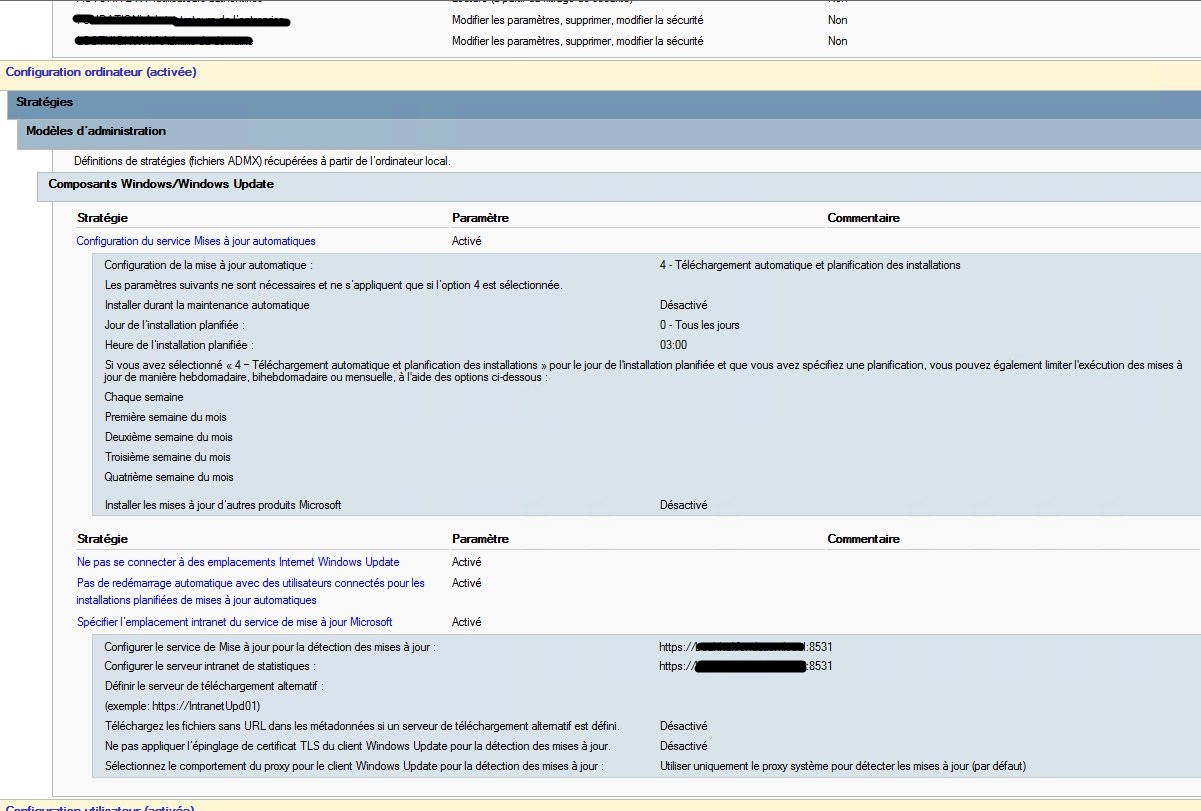
The relevant GPO is the one deployed by the WSUS server. It already contains "Do not automatically restart while users are logged on" — we add the corrections directly to it; there’s no need to create a new one.
Before:
Computer Configuration
└── Administrative Templates
    └── Windows Components
        └── Windows Update
| Setting | Before | After |
|---|---|---|
| Automatic Updates service settings | 4 | 3 |
| No automatic restart with users logged on | Enabled | Enabled (unchanged) |
| Always restart automatically at the scheduled time | Not defined | Disabled |
After:

Result: Updates approved on WSUS are downloaded automatically, but never install on their own. Ansible decides when to install, and the admin decides when to reboot.
Part 2 — Keeping Defender Up to Date Anyway
Immediate side effect of AUOptions=3: Defender definitions set to automatic approval would no longer install either. However, antivirus definitions must be updated daily—and they never require a reboot.
Solution: Configure Defender to manage its definitions independently of WSUS, via its own GPO.
Computer Configuration
└── Administrative Templates
    └── Windows Components
        └── Microsoft Defender Antivirus
            └── Security Intelligence Updates
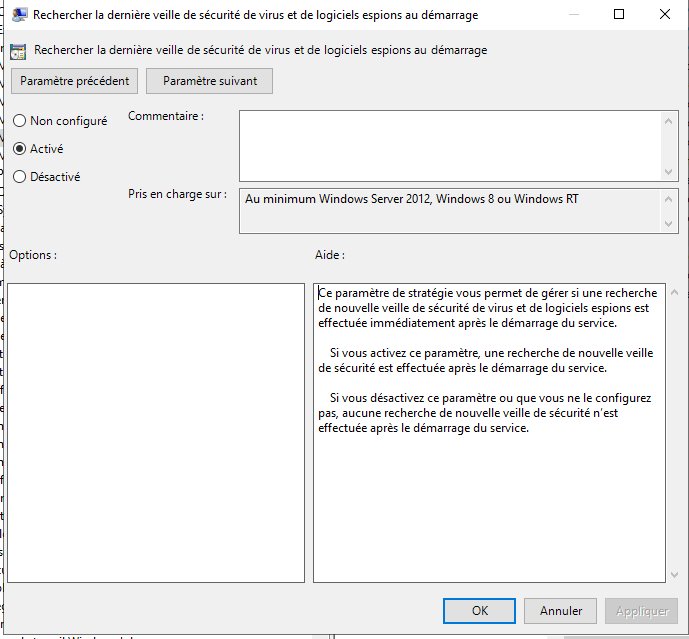
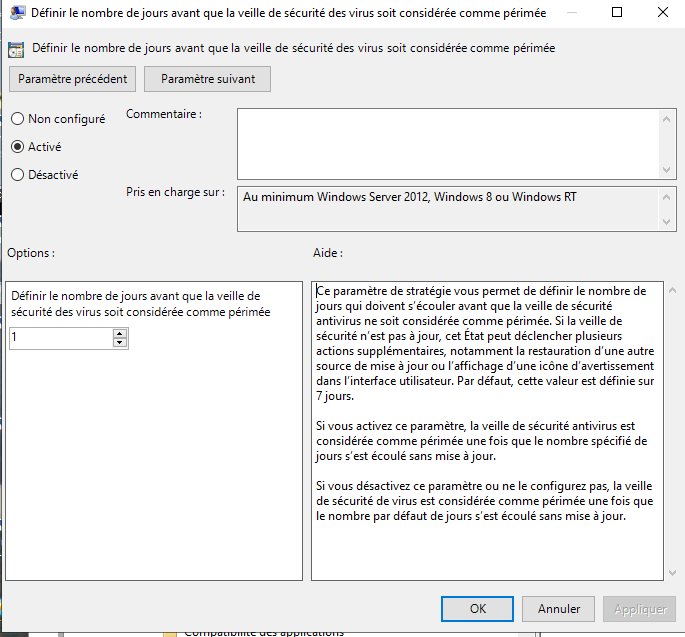
Three settings to enable:
Check for the latest security updates at startup → Enabled
Number of days before expiration (viruses) → 1
Number of days before expiration (spyware) → 1
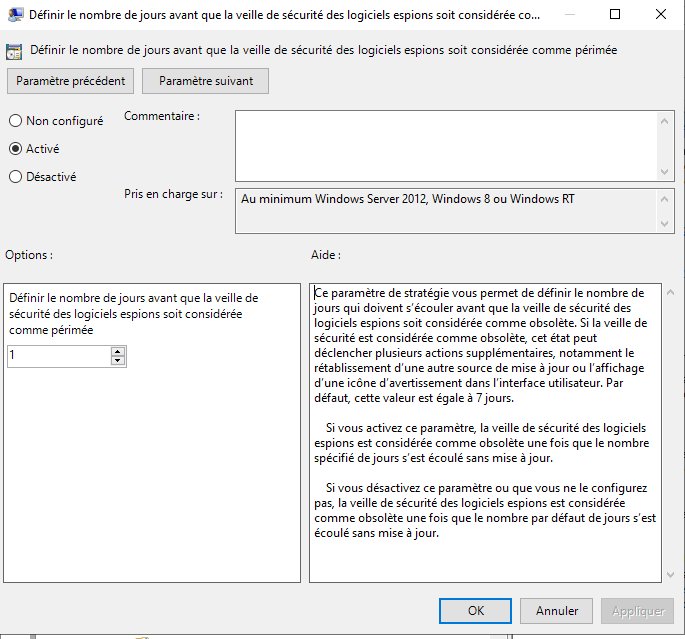
Defender checks for and installs its definitions completely autonomously. The logs confirm automatic daily installation without any intervention.
Part 3 — Deploy WinRM via GPO
Ansible requires WinRM to manage updates remotely. A dedicated GPO handles this.
WinRM GPO Settings
Enable the listener:
Computer Configuration → Administrative Templates
→ Windows Components → Windows Remote Management (WinRM)
→ WinRM Service
→ Allow remote server management via WinRM
    → Enabled — IPv4 Filter: *
The * is important — it means that WinRM listens on all of the machine’s interfaces. A filter on a specific IP would restrict listening to that address, not incoming connections.
Firewall Rules:
Two rules in Security Settings → Windows Firewall with Advanced Features → Inbound Rules:
- Port 5985 (HTTP) — predefined rule "Windows Remote Management (HTTP-Inbound)"
- Port 5986 (HTTPS) — custom rule
For both, the remote IP address is restricted to the Ansible server’s IP only:
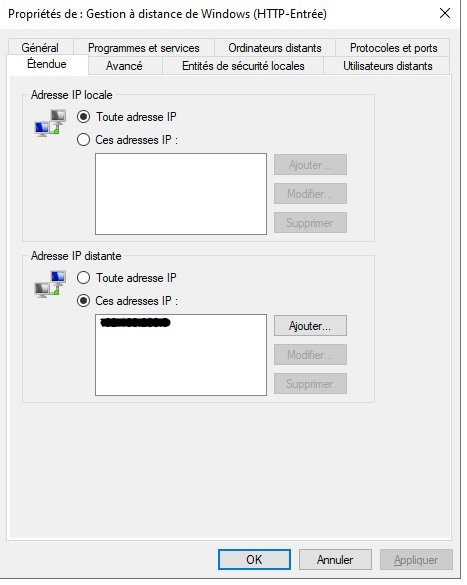
With HTTP, the attack surface remains limited — WinRM is accessible only from the administration machine.
Automatic service startup:
Computer Configuration → Windows Settings
→ Security Settings → System Services
→ Windows Remote Management (WS-Management)
    → Startup type: Automatic
Post-deployment verification
From the Ansible server, after running gpupdate /force on the machines:
for host in IP1 IP2 IP3; do
  echo -n "$host 5985: "
  nc -zv -w2 $host 5985 2>&1 | grep -o 'succeeded\|refused\|timed out'
done
Troubleshooting tip — Remnants of old GPOs
Two machines stubbornly refused any NTLM connection despite having a WinRM configuration identical to the others. The Windows security logs (Event ID 4625) returned error code 0x80090302 (SEC_E_UNSUPPORTED_FUNCTION) — and crucially: the account name was empty in the log. The NTLM handshake failed before authentication even began.
Upon investigation, the culprits were residual registry keys in HKLM:\SYSTEM\CurrentControlSet\Control\Lsa\MSV1_0:
restrictreceivingntlmtraffic = 2  (Deny all)
restrictsendingntlmtraffic   = 2  (Deny all)
These keys originated from old NTLM hardening GPOs that no longer existed, but whose values remained in the registry. The value 2 blocks all incoming and outgoing NTLM traffic.
Removed the residual keys + rebooted — the machines responded immediately.
Lesson learned: when deleting a hardening GPO, always deploy a counter-GPO that resets the settings to their default values, and verify that it has been successfully applied to all machines before deleting the original. Otherwise, the values remain in the registry indefinitely.
Part 4 — The Ansible Playbook
WinRM Inventory
A dedicated inventory file is created for Windows machines, separate from existing inventories:
[domain1]
SERVER-A    ansible_host=server-a.domain1.local
SERVER-B    ansible_host=server-b.domain1.local

[domain1:vars]
ansible_user=domain1\ansible_svc
ansible_password={{ vault_ansible_password_domain1 }}
ansible_connection=winrm
ansible_winrm_transport=ntlm
ansible_winrm_port=5985
ansible_winrm_scheme=http
ansible_winrm_server_cert_validation=ignore

[domain2]
SERVER-C    ansible_host=server-c.domain2.local
SERVER-D    ansible_host=server-d.domain2.local

[domain2:vars]
ansible_user=domain2\ansible_svc
ansible_password={{ vault_ansible_password_domain2 }}
ansible_connection=winrm
ansible_winrm_transport=ntlm
ansible_winrm_port=5985
ansible_winrm_scheme=http
ansible_winrm_server_cert_validation=ignore

[windows_servers:children]
domain1
domain2
The passwords for the service accounts are stored in the existing Ansible vault.
windows-updates.yml
The playbook runs in two phases: installation on all machines in parallel, followed by the sending of a single summary email at the end of the run.
---
- name: Windows Updates - Installation without reboot
  hosts: windows_servers
  gather_facts: true

  tasks:

    - name: Check for available updates
      ansible.windows.win_updates:
        state: searched
        category_names:
          - SecurityUpdates
          - CriticalUpdates
          - UpdateRollups
          - Updates
      register: updates_found

    - name: Install updates without rebooting
      ansible.windows.win_updates:
        state: installed
        reboot: false
        category_names:
          - SecurityUpdates
          - CriticalUpdates
          - UpdateRollups
          - Updates
      register: install_result
      when: updates_found.found_update_count > 0

    - name: Store the result
      set_fact:
        machine_report:
          host: "{{ inventory_hostname }}"
          updates_count: "{{ install_result.installed_update_count | default(0) }}"
          reboot_required: "{{ install_result.reboot_required | default(false) }}"
          updates_list: "{{ install_result.updates.values() | map(attribute='title') | list if install_result.updates is defined else [] }}"
          status: "{{ 'REBOOT REQUIRED' if install_result.reboot_required | default(false) else ('OK' if updates_found.found_update_count > 0 else 'UP TO DATE') }}"

- name: Send summary report
  hosts: localhost
  gather_facts: true

  tasks:

    - name: Send summary email
      community.general.mail:
        host: "smtp.domain.local"
        port: 25
        from: "ansible@serveur-ansible.domaine.local"
        to: "admin@domaine.local"
        subject: "[WINDOWS UPDATE] {{ update_count }} update(s) — {{ reboot_count }} reboot(s) required — {{ ansible_date_time.date }}"
        body: "{{ full_report }}"
        secure: never
windows-reboot.yml
When the email indicates that a reboot is required, we choose the time and run:
---
- name: Controlled Windows Reboot
  hosts: "{{ target }}"
  gather_facts: false

  tasks:
    - name: Clean reboot with wait for return
      ansible.windows.win_reboot:
        reboot_timeout: 600
        msg: "Scheduled reboot - Ansible maintenance"

    - name: Confirm machine is back online
      ansible.windows.win_ping:
ansible-playbook /etc/ansible/playbooks/windows-reboot.yml \
  -i /etc/ansible/winhosts.ini \
  --vault-password-file /etc/ansible/vault/.vault_pass \
  -e "@/etc/ansible/vault/network-secrets.yml" \
  -e "target=SERVER_NAME"
Results in Real-World Conditions
First run across the entire fleet. One hypervisor had two cumulative updates pending:
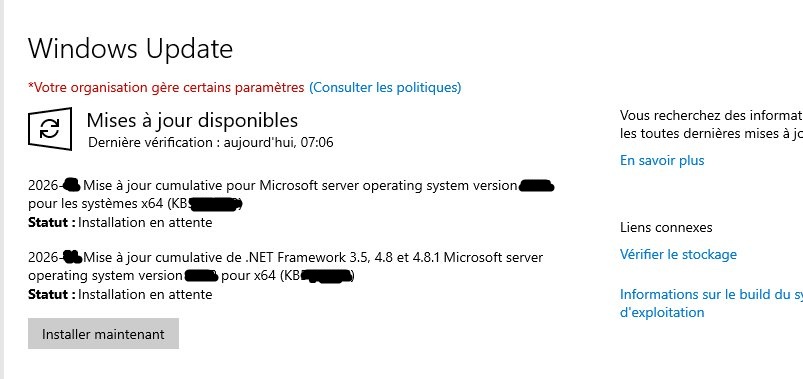
The playbook installed them without rebooting, and the summary email arrived:
[WINDOWS UPDATE] 2 update(s) — 1 reboot(s) required — 2026-04-21

[HYPERVISOR-PRA]
Status: REBOOT REQUIRED
Updates: 2 installed
Reboot: ⚠️ REQUIRED
Details:
  - 2026-xx Cumulative Update for Microsoft Server
    operating system version xxx (KBxxxxxxx)
  - 2026-xx Cumulative Update for .NET Framework 3.5,
    4.8, and 4.8.1 (KBxxxxxxx)
Reboot command:
  ansible-playbook windows-reboot.yml -e "target=HYPERVISOR-PRA"
The hypervisor rebooted the next morning, as scheduled and under control. Not at 3 a.m.
Scheduling
The playbook is integrated into the Ansible server’s crontab, taking into account infrastructure constraints (some machines start up via RTC alarm in the morning and shut down after their backup jobs):
# Windows Updates — Monday and Thursday at 7:10 a.m.
10 7 * * 1,4 ansible-playbook /etc/ansible/playbooks/windows-updates.yml \
  -i /etc/ansible/winhosts.ini \
  --vault-password-file /etc/ansible/vault/.vault_pass \
  -e "@/etc/ansible/vault/network-secrets.yml" \
  >> /home/user/logs/ansible-windows-updates.log 2>&1
The final workflow
WSUS approves an update
         ↓
Machine downloads (AUOptions=3) — nothing else
         ↓
Ansible runs the playbook (Monday/Thursday 7:10 AM)
All machines in parallel, installation without reboot
         ↓
A single summary email: status of each machine,
list of updates, reboot required or not
         ↓
We reboot whenever we want, machine by machine
Next Steps
This project will be completed by switching to HTTPS with certificates signed by the internal PKI. This will allow us to switch from NTLM to Kerberos with full certificate validation—a cleaner configuration and a better solution. The audit and complete cleanup of the GPOs for both domains will also be the subject of another dedicated project.